3D Printer Extruder Clicking Fix: Causes, Settings, and Quick Solutions
3D Printer Extruder Clicking Fix: A Practical Checklist That Actually Works
When the extruder starts clicking, it’s the machine’s way of saying, “I’m trying to push plastic and it’s not moving.” I’m Mike Reynolds, and I’ve heard that click a thousand times across Enders, Prusas, and bargain-bin machines. The good news: extruder clicking is rarely a mystery. It’s a pressure problem. Something is resisting flow and the drive gear skips.
This guide walks through the real-world fixes in the order that saves the most time. Start with the easy wins, then move deeper only if the click won’t quit. By the end, you’ll know whether the issue is heat, friction, tension, or a partial clog—and you’ll have concrete settings to try.
What the Clicking Sound Actually Means
The stepper motor is turning, but the filament isn’t moving smoothly. The drive gear slips on the filament and “clicks” back. Causes fall into four buckets:
- Not enough heat to melt the filament.
- Too much resistance in the path (clog, kink, tight spool).
- Excessive back pressure from aggressive settings.
- Bad grip from wrong tension or worn gears.
Quick Fixes (Try These First)
These solve the majority of cases and take five minutes:
- Raise nozzle temp 5–10°C. PLA that printed at 200°C yesterday may need 210°C today if your room is colder or the spool is different.
- Slow down the print. Drop speed by 10–20%. If volumetric flow is too high, the extruder can’t keep up.
- Reduce retraction distance. Excessive retraction can pull hot plastic into the cold zone, causing a partial clog.
- Check the spool path. Make sure it can spin freely and the filament isn’t snagging on the holder.
Step 1: Confirm the Filament Is Melting Properly
If the heater isn’t melting the filament fast enough, the extruder will click under load. Run a simple test:
- Heat the nozzle to normal printing temp.
- Manually push filament through by hand.
- It should flow smoothly with moderate pressure.
If it’s hard to push, either the temperature is too low or there’s a partial clog. Try +10°C. If that helps, your original temp was borderline. If it’s still stiff, you need to check the hotend path.
Step 2: Look for a Partial Clog
A partial clog is the #1 cause of clicking on machines that used to print fine. Symptoms include thin layers, weak walls, or random under-extrusion. Fix it like this:
- Heat the nozzle to printing temp.
- Remove the filament and cut the tip clean.
- Do a cold pull with nylon or clean PLA. Heat to 230°C, insert filament, cool to ~90°C, then pull.
- Inspect the pulled filament for debris or dark spots.
If cold pulls don’t help, remove the nozzle and inspect the heat break for a plug or burnt plastic.
Step 3: Check Extruder Tension and Drive Gear
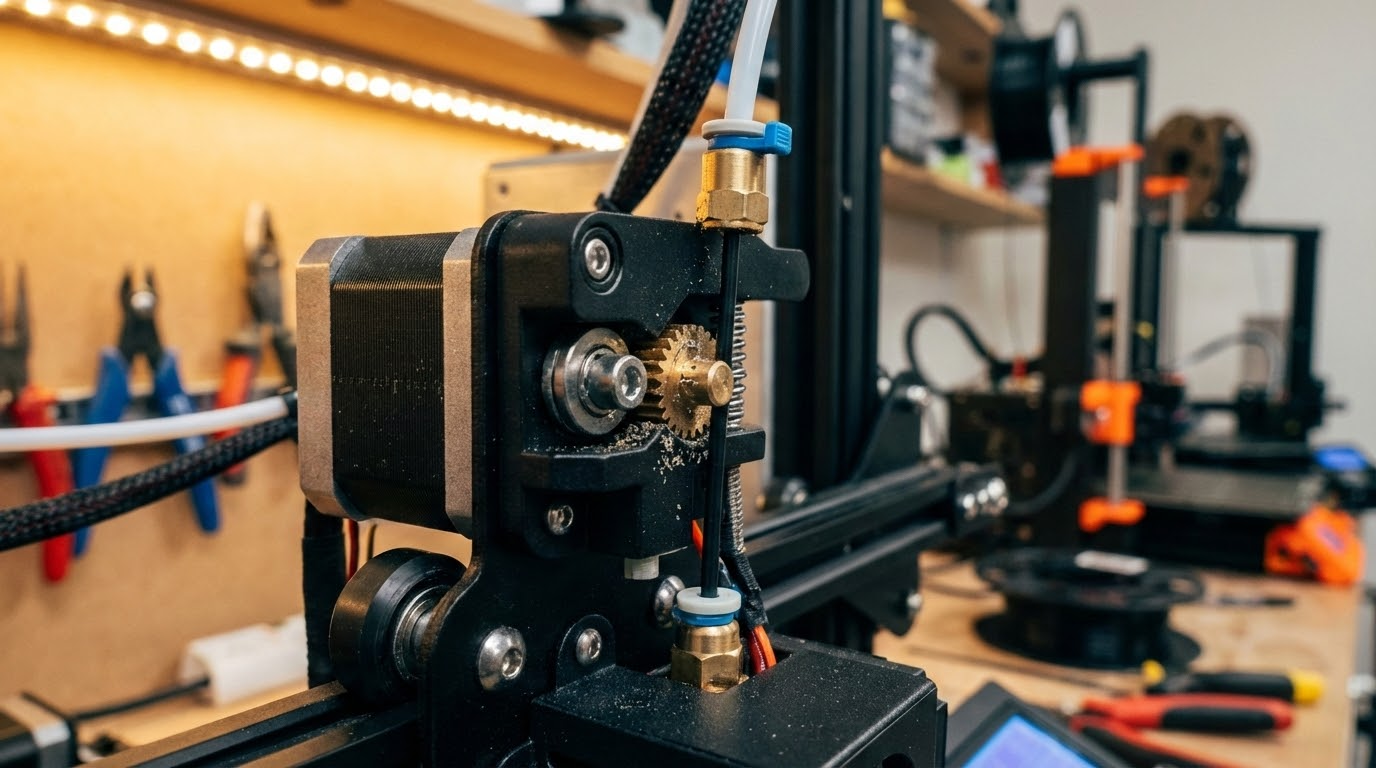
Too much tension can crush filament; too little can cause slipping. The drive gear should bite cleanly without flattening the filament. If you see deep teeth marks or powdered plastic, tension is too tight or the gear is dirty.
- Back off the tension screw by 1–2 turns and test.
- Clean the gear teeth with a small brush or pick.
- Replace a worn gear if the teeth are rounded.
Step 4: Bowden vs Direct Drive Differences
On Bowden setups, the tube itself can cause resistance. Check for:
- Kinks or worn PTFE near the hotend.
- A gap between tube and nozzle (creates a molten plug).
- Sharp bends or friction at the extruder inlet.
On direct drive systems, clicking is more often caused by temperature or retraction settings.
Step 5: Fix Over-Aggressive Slicer Settings
Extruder clicking can be a sign the printer is being asked to do too much. Focus on these settings:
- Print speed: Reduce by 10–30% for thicker layers or high-flow nozzles.
- Layer height: Keep under 80% of nozzle diameter (0.32 mm for a 0.4 mm nozzle).
- Line width: Don’t exceed 120% of nozzle diameter.
- Retraction distance: Bowden 4–6 mm, direct drive 0.8–2 mm as a starting point.
- Retraction speed: Too fast can grind filament—try 25–35 mm/s.
Step 6: Check Cooling and Heat Creep
Heat creep happens when heat travels up the heat break and softens filament too early. That causes a plug and clicking. If the fan isn’t spinning or airflow is blocked, fix it.
- Verify the hotend fan runs 100% of the time.
- Clean dust off the heatsink fins.
- Make sure the fan duct isn’t obstructed.
Step 7: Confirm Filament Quality and Diameter
Bad filament can cause inconsistent feed. Measure diameter with calipers in a few spots. If it’s way off (1.65–1.85 mm for “1.75 mm” filament), you’ll see clicks. Also check for moisture—wet filament can swell and stick inside the tube.
When to Replace the Nozzle
If your printer uses a brass nozzle and you’ve been printing abrasive filaments, the bore can wear out and cause chaotic flow. Replace the nozzle if:
- Cleaning doesn’t restore smooth extrusion.
- Prints show random under-extrusion despite good settings.
- The nozzle has visible internal wear.
My Default Fix Order (The Short Version)
- Increase temp +10°C.
- Reduce speed 20%.
- Reduce retraction distance.
- Clean or replace nozzle.
- Adjust extruder tension.
That solves 90% of clicking cases without tearing the printer apart.
Diagnostic Flow: 10-Minute Decision Tree
If you want a quick, repeatable process, use this flow:
- Clicking during the first layer? Raise temp 5–10°C and slow first-layer speed. If fixed, your cold-start profile was too aggressive.
- Clicking mid-print after a few hours? Suspect heat creep or a partial clog. Check the hotend fan and do a cold pull.
- Clicking only on retraction-heavy models? Reduce retraction distance and speed. Enable “combing” or “avoid crossing perimeters” to reduce travel moves.
- Clicking when the spool is low? The spool may bind more when it’s light. Add a filament guide or low-friction holder.
That sequence keeps you from disassembling hardware when the fix is just two settings.
Baseline Settings That Usually Eliminate Clicking
These ranges are conservative and work on most hobby printers:
- PLA: 205–215°C, 35–50 mm/s, retraction 0.8–1.5 mm (direct drive) or 4–6 mm (Bowden).
- PETG: 230–245°C, 30–45 mm/s, retraction slightly lower than PLA to avoid heat creep.
- ABS: 235–250°C, 35–50 mm/s, retraction 1–2 mm (direct drive) or 4–5 mm (Bowden).
Use these as a baseline, then optimize. If clicking happens outside these ranges, bring the profile back in-bounds and test again.
Maintenance That Prevents Clicking
Most clicking issues are preventable with simple maintenance:
- Trim 10–20 mm of filament before loading so the tip is clean.
- Keep a spare nozzle and swap it every few months if you print a lot.
- Check PTFE tube length; if it’s scorched or mushroomed, replace it.
- Dry filament when humidity is high. Wet filament adds drag and clogs more easily.
Common Mistakes That Make Clicking Worse
I see the same missteps over and over:
- Chasing retraction numbers from the internet. Retraction depends on your hotend and filament path. A profile from someone else can easily trigger clicking.
- Turning the tension screw all the way in. This crushes filament, increases friction in the tube, and creates shavings that clog the hotend.
- Ignoring a weak hotend fan. If the fan is intermittent, you’ll get heat creep in long prints and clicking shows up late in the job.
- Printing too cold “to prevent stringing.” Under-temping is a fast track to clicking. Fix stringing with retraction and cooling, not by starving the nozzle.
- Skipping a proper unload. Yanking filament cold can leave a plug in the heat break. Always heat before unloading.
Fixing those habits prevents the issue from returning every few weeks.
Quick FAQ
Can a clogged nozzle cause clicking even if filament still comes out? Yes. Partial clogs restrict flow without fully blocking it. That restriction increases pressure and triggers clicking under load.
Why does clicking happen only on certain models? Models with lots of retractions or high-speed infill push the extrusion system harder. If your settings are borderline, clicking appears on demanding prints first.
Is it okay to just raise the temperature and ignore it? Temperature helps, but if you’re compensating for a mechanical issue, it will come back. Use temp as a test, not a permanent band-aid.
Printable Checklist
- Temp +5–10°C test
- Speed -20% test
- Retraction distance cut by 30%
- Cold pull and nozzle inspection
- Clean drive gear and set tension
If you work through that list in order, you’ll fix clicking on most consumer printers without replacing any parts.
Final Thoughts
Extruder clicking isn’t fatal. It’s a signal that flow is being restricted somewhere, and the fix is usually straightforward. Be systematic. Start with heat and speed, then clean the path, then tune tension. If you do that in order, you’ll get reliable extrusion again and the click will disappear.
If you want a one-line takeaway: clicking equals pressure. Reduce the pressure, and the printer will quiet down.