3D Printer SD Card Not Reading? Here’s How to Fix It
Few things are more frustrating than carefully preparing a print file, loading up an SD card, plugging it into your 3D printer — and getting nothing. No file list. No response. Maybe a blank screen, or your printer simply doesn’t acknowledge the card exists. SD card problems are one of the most common yet overlooked issues in 3D printing, and they can waste hours of troubleshooting time if you’re looking in the wrong places.
In this guide, I’ll cover every reason your 3D printer might not read an SD card and the exact steps to fix each one.
Why Your 3D Printer Won’t Read the SD Card
Before we dive into solutions, it helps to understand that 3D printers — especially budget FDM machines — have surprisingly picky SD card readers. Unlike your laptop or camera, most printer mainboards use simple SPI-mode card interfaces with limited compatibility. This means issues that would never affect a modern computer can completely stump your printer.
Problem 1: Wrong SD Card Format
This is the number one cause of SD card issues, and it’s entirely fixable.
Most 3D printer mainboards (especially older ones and budget boards like the Creality 4.2.x series) only support FAT32 file system formatting. If your SD card is formatted as exFAT, NTFS, or any other file system, the printer simply can’t read it.
Here’s the catch: SD cards larger than 32GB are typically formatted as exFAT out of the box. So if you bought a 64GB or 128GB card thinking more storage is better, that’s likely your problem right there.
How to Fix It
- Windows: Right-click the card in File Explorer → Format → Select FAT32 → Start. Note: Windows’ built-in formatter won’t let you format cards larger than 32GB as FAT32. Use a free tool like Rufus or FAT32 Format (GUI Format) to force FAT32 on larger cards.
- Mac: Open Disk Utility → Select the card → Erase → Format: MS-DOS (FAT) → Erase.
- Linux: Use
sudo mkfs.fat -F 32 /dev/sdX1(replace with your actual device path).
Pro tip: Stick with 8GB or 16GB cards for 3D printing. They’re cheap, always FAT32 by default, and you’ll never need more space — G-code files are typically 5–50MB each.
Problem 2: File Name and Path Issues
Many 3D printer firmwares have strict limitations on file names:
- Maximum 8.3 character names: Some older firmware versions only support the classic DOS naming convention (8 characters + 3 character extension). A file named “benchy_test_v2_final.gcode” might not show up, but “benchy01.gco” will.
- No special characters: Avoid spaces, parentheses, brackets, accented characters, and symbols. Stick to letters, numbers, hyphens, and underscores.
- Case sensitivity: Some firmware is case-sensitive, others aren’t. For safety, use lowercase filenames.
- Nested folder depth: Most printers can handle one level of folders. Deep folder structures (card/prints/2026/march/test/) may not be navigable.
- File extension: Make sure the file ends in
.gcodeor.gco. Some slicers add extra extensions like.gcode.bakwhich won’t be recognized.
How to Fix It
Rename your files to something simple like print01.gcode. Keep files in the root directory of the card, not inside folders (unless you’ve confirmed your printer supports folder navigation). Remove any non-ASCII characters from file names.
Problem 3: Corrupted SD Card
SD cards can become corrupted from:
- Removing the card while the printer is reading/writing
- Power loss during a print (some printers write to the card for resume functionality)
- Card reaching its write-cycle limit (cheap cards fail faster)
- Static discharge damaging the card’s controller
A corrupted card might show some files but not others, display garbled names, or simply not mount at all.
How to Fix It
- Try the card in your computer first. If your PC can’t read it either, the card is likely dead or severely corrupted.
- Run error checking: On Windows, right-click the drive → Properties → Tools → Check. On Mac, use Disk Utility’s First Aid. On Linux, run
fsck.fat /dev/sdX1. - Full format (not quick format). A quick format only clears the file table; a full format checks every sector. This can revive cards with minor corruption.
- Replace the card. SD cards are consumable items — they wear out. If a full format doesn’t fix it, spend $5 on a new card.
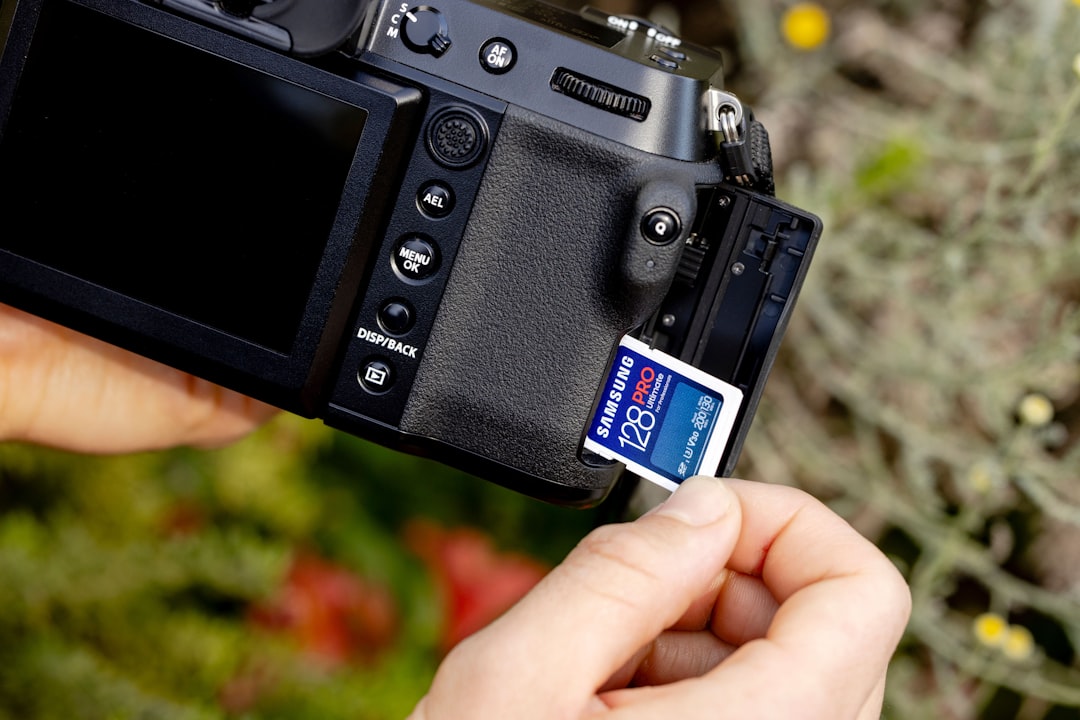
Problem 4: Dirty or Damaged Card Slot
The SD card slot on your printer is exposed to the same environment as your prints — that means fine particles of filament dust, plastic shavings, and general workshop debris can work their way into the slot over time.
How to Fix It
- Blow it out. A quick blast of compressed air into the card slot can dislodge debris. Don’t use your mouth — moisture from your breath can cause more problems.
- Clean the contacts. Gently clean the gold contacts on your SD card with isopropyl alcohol (90%+) on a lint-free cloth. Do the same for the contacts inside the slot if accessible.
- Check for bent pins. Look inside the card slot with a flashlight. If any of the tiny spring contacts are bent or broken, you may need to replace the card reader module or use USB/Wi-Fi as an alternative.
- Try a different card. Before assuming the slot is damaged, test with a known-good card. This eliminates the card itself as a variable.
Problem 5: Card Capacity Too Large
As mentioned earlier, many printer mainboards have a maximum supported card size. Common limits include:
- Older Creality boards: 8GB max
- Creality 4.2.x boards: 32GB max
- SKR boards: 32GB (FAT32) by default, larger with custom firmware
- Prusa boards: 32GB recommended
- Bambu Lab: Supports up to 2TB via micro SD (SDXC support in firmware)
If your card is larger than what your board supports, format a smaller partition or simply use a smaller card.
Problem 6: Firmware-Related Issues
Sometimes the problem isn’t the card at all — it’s the firmware on your printer.
- Firmware update gone wrong: If a firmware update was interrupted or installed incorrectly, the SD card reader functionality might be broken. Reflash the firmware.
- TF card vs SD card: Some printers (especially those sold in Chinese markets) refer to micro SD cards as “TF cards.” This is the same thing — don’t let the terminology confuse you.
- Marlin firmware buffer: In rare cases, Marlin’s SD card read buffer can be too small for files with extremely long lines of G-code (common with arc-heavy toolpaths). Recompile Marlin with a larger
MAX_CMD_SIZEif you experience this.
Problem 7: Fake or Low-Quality SD Card
This is more common than you’d think. Counterfeit SD cards — especially purchased from marketplace sellers — may report a larger capacity than they actually have. A “64GB” card might actually be a 4GB card with modified firmware that lies about its capacity. When data is written past the actual capacity, it silently overwrites older data, resulting in corrupted files.
How to Detect a Fake Card
- H2testw (Windows): This free utility writes data to fill the entire card, then reads it back to verify. If the card is fake, the verification will fail past the real capacity.
- F3 (Mac/Linux): The equivalent tool for non-Windows systems. Run
f3write /media/sdcardfollowed byf3read /media/sdcard.
Buy SD cards from reputable retailers (Amazon direct, not third-party sellers), and stick with known brands like Samsung, SanDisk, or Kingston.
Alternative: Skip the SD Card Entirely
If you’re tired of dealing with SD card problems, there are better ways to send files to your printer:
- OctoPrint: A Raspberry Pi running OctoPrint gives you wireless printing, remote monitoring, webcam support, and never requires touching an SD card again. It’s the single best upgrade for any 3D printer.
- USB connection: Most printers can print via USB from a connected computer. Not ideal for long prints (if the computer sleeps, the print stops), but useful for testing.
- Wi-Fi (built-in): Newer printers from Bambu Lab, Prusa, Creality (K1 series), and others include Wi-Fi connectivity for direct file transfer from your slicer.
- Klipper + Mainsail/Fluidd: If you’ve upgraded to Klipper firmware, you get a web interface for file management that makes SD cards completely unnecessary.
Quick Troubleshooting Checklist
Before you do anything else, run through this quick checklist:
- Is the card FAT32 formatted? (Most common fix)
- Is the card 32GB or smaller?
- Are file names simple (no spaces, special characters, 8.3 format)?
- Are files in the root directory?
- Does the card work in your computer?
- Have you tried a different card?
- Is the card slot clean?
- Is the card from a reputable brand?
Nine times out of ten, the answer is sitting in the first three items on this list. Format to FAT32, use a small card, keep file names simple — and your printing workflow will be much smoother for it.