3D Printer WiFi Connection Problems: Complete Troubleshooting Guide
Why WiFi Matters for Modern 3D Printers
WiFi-enabled 3D printers have transformed the workflow for hobbyists and professionals alike. No more shuffling SD cards, walking to the printer to start a job, or wondering if your print is still running. Remote monitoring, cloud slicing, and wireless file transfer are now standard features on printers from Bambu Lab, Creality, Prusa, and others.
But WiFi connectivity on 3D printers is notoriously finicky. These machines aren’t laptops with robust WiFi chipsets — they’re running low-power microcontrollers with basic radio modules that struggle in less-than-ideal conditions. When the connection drops mid-print, you lose hours of work. Here’s how to diagnose and fix every common WiFi issue.
The Most Common WiFi Problems (and Quick Fixes)

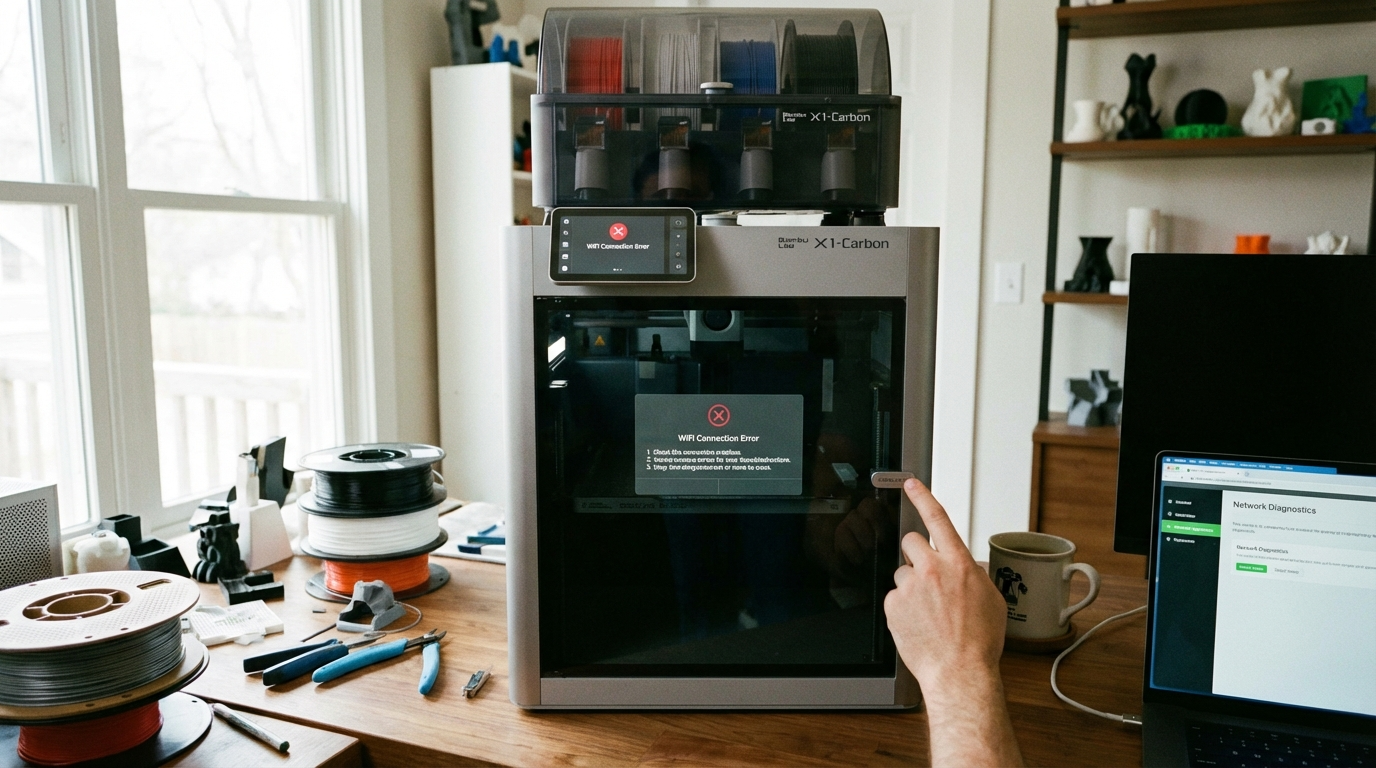
1. Printer Won’t Connect to WiFi at All
This is the most frustrating issue — you’re entering the password, the printer spins for a while, and either shows an error or just returns to the setup screen.
Fixes to try, in order:
- Check your WiFi band. Most 3D printers only support 2.4 GHz networks, not 5 GHz. If your router broadcasts a combined network, the printer might be trying to connect to the 5 GHz band. Solution: create a separate 2.4 GHz SSID in your router settings, or ensure your combined network allows 2.4 GHz connections.
- Verify the password. This sounds obvious, but many printer touchscreens have awkward keyboards that make typos easy. Some printers don’t show the password as you type. Write it down and enter it carefully, character by character.
- Check for special characters. Some printer firmware struggles with passwords containing special characters like !, @, #, or spaces. If your WiFi password has these, try changing it temporarily to alphanumeric only and see if the printer connects.
- Restart everything. Power off the printer completely (not just the screen), restart your router, wait 60 seconds, then power the printer back on and try again.
- Update firmware. Many WiFi bugs are fixed in firmware updates. Check the manufacturer’s website for the latest version.
2. WiFi Connects but Drops Frequently
The printer connects fine but loses connection during prints, causing failed uploads, lost remote monitoring, or (on some printers) paused prints.
Common causes and solutions:
- Weak signal: 3D printers typically have small, internal antennas. If the printer is more than 15-20 feet from the router with walls in between, signal strength drops significantly. Move the router closer, use a WiFi extender, or add a mesh node near the printer.
- Interference from stepper motors: The stepper motors in 3D printers generate electromagnetic noise that can interfere with the WiFi module. This is especially common in metal-framed printers. A ferrite clamp on the WiFi antenna wire (if accessible) can help.
- Router overload: If your router is managing 20+ devices, it may drop low-priority connections. Some routers have QoS (Quality of Service) settings where you can prioritize the printer’s IP address.
- DHCP lease expiring: Your router assigns the printer an IP address with a lease time. When the lease expires and renews, some printers briefly disconnect. Solution: assign a static IP to the printer in your router’s DHCP settings.
3. Slow File Transfer Speeds
Uploading a 50MB gcode file takes forever, or times out entirely.
- 2.4 GHz congestion: If you live in an apartment building, dozens of nearby networks compete on the 2.4 GHz band. Use a WiFi analyzer app to find the least congested channel, then set your router to that specific channel instead of “Auto.”
- File size: Some printers have small buffers for network transfers. Split large files or upload via USB if the file is over 100MB.
- Printer processing: Some printers start parsing the gcode while receiving it, slowing the transfer. This is normal and not actually a WiFi problem.
4. Printer Shows “Connected” but Can’t Reach Cloud Services
The WiFi icon shows connected, but Bambu Studio, Prusa Connect, Creality Cloud, or other services can’t find the printer.
- Firewall or parental controls: Some routers block outgoing connections from unknown devices. Check your router’s firewall settings and whitelist the printer.
- DNS issues: Try setting the printer’s DNS to 8.8.8.8 (Google) or 1.1.1.1 (Cloudflare) in the network settings, if the printer allows manual DNS configuration.
- Double NAT: If you have a modem/router combo from your ISP plus your own router, you might have double NAT, which can prevent some cloud services from working. Bridge mode on one of the routers fixes this.
- Server-side issues: Sometimes the manufacturer’s cloud service is down. Check their status page or community forum before troubleshooting your local network.
Printer-Specific WiFi Fixes
Bambu Lab (P1S, X1C, A1 Mini)
Bambu Lab printers generally have decent WiFi, but common issues include:
- LAN mode vs. cloud mode: If you’re on the same network, LAN mode is faster and more reliable. Enable it in the printer’s network settings.
- Camera streaming lagging: The camera feed is bandwidth-hungry. If it’s stuttering, reduce the camera quality in Bambu Studio or switch to LAN-only mode.
- A1 Mini WiFi weakness: The A1 Mini’s compact design puts the WiFi antenna closer to the motors. Position it within 10 feet of the router for reliable connectivity.
Creality (K1, K1 Max, Ender-3 V3)
- Creality Cloud app issues: The Creality Cloud app has a history of connectivity bugs. If it can’t find your printer, try using the Creality Print desktop software instead.
- K1 series WiFi dropout: Some early K1 units had WiFi firmware bugs. Update to the latest firmware from Creality’s GitHub or website.
- Sonic Pad integration: If using a Sonic Pad for Klipper, configure WiFi through the Sonic Pad’s Linux system rather than the printer’s built-in settings.
Prusa (MK4, XL with Prusa Connect)
- ESP module setup: Prusa uses a separate ESP WiFi module. Follow Prusa’s official guide carefully — the module needs to be flashed with the correct firmware.
- Prusa Connect registration: The printer needs to be registered to your Prusa account via the one-time code shown on the display. This code expires — if it times out, restart the process.
- Network compatibility: The ESP module is basic and doesn’t support enterprise WiFi (WPA2-Enterprise) used in offices and universities. Use a personal hotspot if needed.
Alternative Solutions: When WiFi Isn’t Worth the Fight
Sometimes the best fix for WiFi problems is to not use WiFi at all. Here are reliable alternatives:
- Ethernet adapter: Some printers (Bambu Lab X1C, Prusa XL) have Ethernet ports. A wired connection is always more reliable than WiFi. If your printer supports it, run a cable.
- USB with OctoPrint/Klipper: A Raspberry Pi running OctoPrint or Klipper connects to the printer via USB and provides WiFi connectivity through the Pi’s robust WiFi. You get all the benefits of remote access without relying on the printer’s weak WiFi module.
- SD card or USB drive: The old-fashioned way still works perfectly. Zero network issues, zero latency, zero dropped connections. Many experienced users keep an SD card workflow even when WiFi is available, using WiFi only for monitoring.
- Powerline Ethernet adapter: If running an Ethernet cable isn’t practical, powerline adapters use your home’s electrical wiring to extend your network. Plug one into a socket near your router and another near your printer, then use a short Ethernet cable to the printer.
Network Setup Best Practices for 3D Printers
- Assign a static IP: Prevents DHCP-related disconnections and makes it easier to access web interfaces
- Use a dedicated 2.4 GHz SSID: Keep your 3D printer on a separate, uncongested network
- Position the router wisely: Direct line of sight is ideal. Metal shelving, concrete walls, and microwave ovens are signal killers
- Keep firmware updated: Both the printer firmware and router firmware. Many WiFi bugs are resolved in updates
- Document your setup: Write down the printer’s IP address, SSID, and any custom settings. You’ll need them when troubleshooting at 2 AM
Final Thoughts
WiFi connectivity issues on 3D printers are almost always solvable. Most problems trace back to three root causes: wrong WiFi band (5 GHz vs. 2.4 GHz), weak signal (printer too far from router), or firmware bugs (update fixes it). Work through these systematically before investing in hardware solutions. And remember — if WiFi is causing more frustration than convenience, an SD card never drops its connection.