How to Fix a 3D Printer Skipping Layers on One Side Only
Your print looks fine on one side and terrible on the other. Layers are shifting, gaps appear, or the surface quality drops dramatically — but only on one axis or one direction. This isn’t random. When a 3D printer skips layers on one side only, it’s telling you something very specific about what’s failing, and the fix is usually straightforward once you know where to look.
This guide covers every cause of one-sided layer skipping and gives you the exact troubleshooting steps to fix each one.
What “Skipping Layers on One Side” Actually Looks Like
Before diving into fixes, let’s make sure we’re diagnosing the right problem. One-sided layer skipping typically shows up as:
- Visible gaps or shifted layers on the left or right side of a print, while the opposite side looks clean
- A “staircase” pattern where layers are consistently offset in one direction
- Surface quality degradation on just the X-positive or X-negative face (or Y equivalent)
- Intermittent layer shifts that only happen when the printhead moves in a particular direction
This is distinctly different from random layer shifting (which affects all sides equally) or overall print quality issues. The asymmetry is the key diagnostic clue.
Cause 1: Loose or Worn Belt on One Side
This is the single most common cause of one-sided layer issues, and it’s where you should start troubleshooting.
On a typical bed-slinger printer like the Ender 3, the X-axis belt drives the printhead left and right, and the Y-axis belt drives the bed forward and back. If one belt is loose, the motion in one direction will be sloppy while the return motion is pulled tight by the belt’s tension.
How to check:
- Power off the printer and gently push the printhead (for X-axis) or bed (for Y-axis) back and forth
- Feel for any play or “slop” — there should be zero free movement before the belt engages
- Pluck the belt like a guitar string. It should produce a low bass note, not a slack thud
- Check the belt teeth for wear, especially where they wrap around the pulleys. Worn teeth cause intermittent skipping
The fix:
- Tighten the belt tensioner until the belt is firm but not guitar-string tight. Over-tensioning causes its own problems (bearing wear, motor strain)
- If the belt has worn or missing teeth, replace it entirely. GT2 belts are inexpensive and easy to swap
- Check that the belt path is straight — a belt that rubs against its own idler bracket can skip under load in one direction
Cause 2: Eccentric Nut Out of Adjustment
Most budget and mid-range printers use V-slot wheels with eccentric nuts to adjust how tightly the carriage rides on the aluminum extrusion. If the eccentric nut is too loose on one side, the carriage can rock or deflect during moves in one direction, creating one-sided artifacts.
The test: Grab the printhead or bed carriage and try to wobble it perpendicular to its travel direction. Any movement means the eccentric nuts need adjustment.
The fix: Use the included wrench (or a small adjustable wrench) to rotate the eccentric nut in small increments. The carriage should roll smoothly with zero wobble. If you can’t eliminate wobble without making the carriage too tight to move freely, one or more wheels may be worn and need replacement.
Cause 3: Stepper Motor Issues (One Direction Only)
Stepper motors can develop problems that only manifest in one rotational direction. This is rarer than belt issues but absolutely happens, especially with:
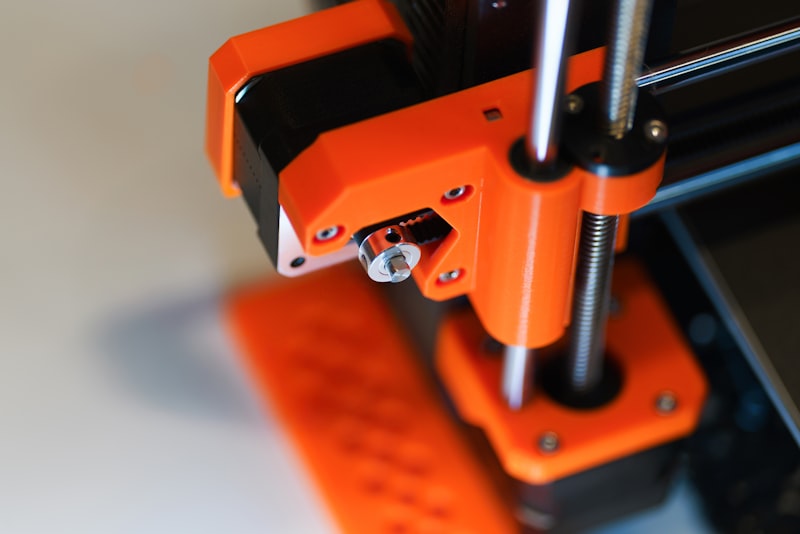
- Loose motor coupling — The grub screw on the motor pulley can loosen, causing the pulley to slip on the shaft. Because of the grub screw’s position, it often only slips under load in one direction.
- Failing stepper driver — Overheating or damaged stepper drivers can lose steps asymmetrically. If your stepper driver runs hot (too hot to touch), it may be losing steps under high-current demands.
- Wiring issues — A loose connection in the stepper motor cable can cause intermittent step loss. Since the current flow reverses with direction, a bad connection might only drop out in one polarity.
Fixes:
- Check and tighten all grub screws on motor pulleys (use Loctite threadlocker for a permanent fix)
- Add heatsinks to stepper drivers if they’re running hot
- Reseat all stepper motor cable connections, checking for bent pins or corroded contacts
- Try swapping the X and Y stepper drivers (if they’re removable) to see if the problem follows the driver
Cause 4: Mechanical Binding at One End of Travel
Your printer might move freely through most of its travel but bind or drag at one extremity. This causes skipped layers only when the print extends to that side of the build plate.
Common binding causes:
- Cable bundle catching on the frame at full extension
- PTFE tube or filament path creating drag when the extruder moves to one side
- Misaligned linear rod or rail (bent, shifted, or with a burr)
- Debris on the rail or rod at one end
Diagnosis: Slowly move the carriage by hand through its full range of travel with the printer powered off. Feel carefully for any spot where resistance increases. Pay special attention to the last 10–20mm of travel in each direction.
Cause 5: Slicer Settings Creating Asymmetric Moves
Sometimes the hardware is fine and the problem is in the G-code. Certain slicer settings can create situations where one side of a print gets worse quality:
- Seam placement — If the Z-seam is set to “nearest” rather than “aligned,” the seam can cluster on one face of the print, making it look like one side has layer issues
- Combing/travel moves — Aggressive combing settings can create ooze artifacts preferentially on one side
- Cooling asymmetry — If your part cooling fan only blows from one side, overhangs on the opposite side will sag and look like shifted layers
Cause 6: Frame Not Square
A frame that’s racked (parallelogram instead of rectangle) creates a systematic bias in one direction. This is especially common on self-assembled kits where the frame was tightened before being squared.
How to check: Measure the diagonals of your frame. On a rectangular frame, both diagonals should be equal. If they differ by more than 1–2mm, the frame needs to be squared.
Systematic Troubleshooting Process
Don’t shotgun this. Work through these steps in order:
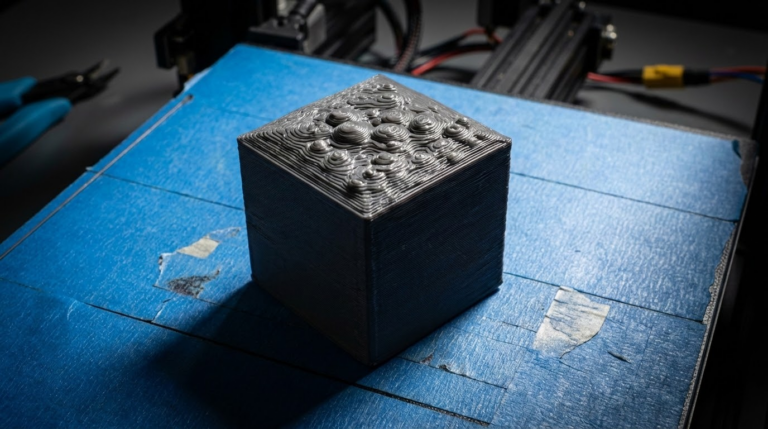
- Print a calibration cube — Place it in the center of the bed and examine all four sides. Note which face(s) show issues.
- Identify the axis — One-sided issues on the left/right faces point to X-axis problems. Front/back faces point to Y-axis. This narrows your search immediately.
- Check the belt — Tension it properly. This fixes the problem about 60% of the time.
- Check the eccentric nuts — Adjust for zero wobble with free movement.
- Check the motor pulley grub screws — Tighten with appropriate hex key.
- Move the carriage by hand — Feel the entire range of travel for binding or rough spots.
- Print again — If the problem persists, move on to electrical diagnosis (stepper drivers, wiring).
When One-Sided Skipping Happens Only on Tall Prints
If the problem only appears above a certain height, the culprit is usually Z-axis related. A bent lead screw, loose Z-coupler, or Z-axis binding can cause intermittent layer issues that compound as the print gets taller. The “one-sided” appearance comes from the Z-axis wobble rotating the print slightly at each layer.
Check your lead screw for straightness (roll it on a flat surface), verify the coupler between the motor and lead screw is tight, and ensure the Z-axis moves freely through its full range.
Prevention: Maintenance That Stops the Problem Before It Starts
- Check belt tension monthly — belts stretch over time
- Verify grub screws quarterly — vibration loosens them
- Clean rails and rods monthly — dust and debris accumulate
- Re-check frame squareness after any major modification or move
- Listen to your printer — a well-tuned printer has a consistent sound. Any clicking, grinding, or rhythmic thumping indicates a mechanical issue developing
One-sided layer skipping is frustrating because it’s so close to working perfectly. But the asymmetry is actually your friend — it’s a diagnostic arrow pointing directly at the failing component. Follow the clues, work through the steps methodically, and you’ll have it sorted in an afternoon.