Best 3D Printer for Schools and Education in 2026
Buying a 3D printer for a school is nothing like buying one for yourself. When it’s your own printer, you tinker. You fix jams. You replace nozzles at midnight. You accept the occasional spaghetti print as part of the hobby.
In a school setting, none of that works. Teachers aren’t trained as 3D printing technicians. Students will push every button they shouldn’t. The printer will run 6 hours a day during project weeks and collect dust during summer break. And the budget committee wants to know why you need anything fancier than a $200 Ender 3.
I’ve helped set up 3D printing programs in four schools over the past three years. The printers that survived weren’t the cheapest or the fanciest — they were the most reliable, safest, and easiest to use. Here’s what actually works in a classroom.
What to Look For in a School 3D Printer
Before the specific recommendations, here are the non-negotiable features for educational environments:
Safety First
- Enclosed build chamber. Students shouldn’t be able to touch a 200°C hotend or a moving gantry. Full enclosure with a door that pauses the print when opened is ideal.
- PLA-only capability is fine. PLA is the safest filament — low odor, no toxic fumes, biodegradable. Schools shouldn’t be printing ABS, ASA, or resin without proper ventilation and safety protocols.
- HEPA or carbon filter. Even PLA emits ultrafine particles. An enclosed printer with a built-in filter is best for indoor classroom use.
- Cool-down warning. The bed and nozzle stay hot after printing. Printers that display a temperature warning or lock the door until cool-down are safer for younger students.
Ease of Use
- Auto bed leveling. Manual bed leveling is the number one maintenance headache in schools. If a student bumps the bed, the teacher shouldn’t need to spend 20 minutes releveling.
- Touchscreen interface. Students and teachers navigate touchscreens intuitively. Rotary knobs and LCD menus from 2018 are confusing for beginners.
- WiFi/network connectivity. A printer that accepts files over WiFi or a local network is vastly more practical than one that requires SD cards or USB cables per print.
- Automatic filament loading. Reduces the chance of filament jams from improper loading.
Reliability
- Minimal calibration needed. The printer should work out of the box with minimal setup. If it requires hours of assembly and tuning before the first print, it’s not school-appropriate.
- Available support and community. When something goes wrong (it will), there should be documentation, video guides, or a support team to call.
- Replacement parts availability. Nozzles clog. Beds scratch. Parts need replacing. A printer with readily available spare parts has a longer useful life.
Budget Reality
Schools operate on tight budgets. The printer cost is just the beginning — add filament ($20-25/kg), replacement parts, and potential software licenses. A $300 printer that breaks constantly is more expensive than a $700 printer that runs for three years without issues.
1. Bambu Lab A1 Mini — Best Budget Pick
Price: ~$200 (printer) + ~$75 (AMS Lite) | Build Volume: 180 x 180 x 180mm
The A1 Mini is absurdly good for the price. It arrives almost fully assembled (10 minutes of setup), auto-calibrates everything, and prints reliably from the first job.
Why it works for schools: The automatic bed leveling, vibration compensation, and flow calibration mean a teacher can unbox it, plug it in, and start printing within an hour. The touchscreen is clean and intuitive. WiFi connectivity lets students send prints from any computer on the school network.
The limitation: It’s not enclosed. For elementary schools, this matters — young students can reach the moving parts and hot nozzle. For middle school and above, with basic safety rules, the open design hasn’t been an issue in my experience. You can buy third-party enclosures for $50-80.
Filament: The AMS Lite add-on enables up to four colors, which is fantastic for STEM projects where students design multi-color models. Students love it.
My recommendation: Buy a set of 3-5 A1 Minis instead of one expensive printer. More printers mean more students printing simultaneously, shorter wait times, and a spare if one goes down.
2. Bambu Lab P1S — Best Overall for Education
Price: ~$600 (printer) + ~$100 (AMS) | Build Volume: 256 x 256 x 256mm
If the budget allows one step up from the A1 Mini, the P1S is the sweet spot for schools. It has everything the A1 Mini offers, plus a full enclosure with a built-in carbon filter and a larger build volume.
Why it works for schools: The enclosure is the key differentiator. Students can’t touch the hotend or moving parts during printing. The built-in air filter addresses air quality concerns. The larger build volume handles bigger project builds. And at $600, it’s still within reach for most school budgets.
Speed: The P1S prints fast — up to 500mm/s with good quality. A project that takes 4 hours on an Ender 3 finishes in 90 minutes on a P1S. In a classroom with shared printer access, speed is directly proportional to how many students get to print in a day.
Reliability track record: I installed three P1S units in a high school maker space 18 months ago. In that time, we’ve replaced two nozzles and zero other parts. They print daily during school hours.
3. Prusa MK4S — Best for Learning
Price: ~$600 (assembled) or ~$450 (kit) | Build Volume: 250 x 210 x 220mm
The Prusa MK4S is the educational standard for a reason. Prusa offers a dedicated education program with discounts, curriculum materials, and support specifically for schools.
Why it works for schools: Prusa’s PrusaSlicer is free, open-source, and has the best documentation in the industry. There are official lesson plans, project ideas, and teacher guides available through Prusa’s education portal. If your goal is teaching students about 3D printing — not just using it — Prusa’s ecosystem supports that better than anyone.
The kit option: For high school and university programs, the MK4S kit ($450) is a fantastic educational tool. Assembling the printer teaches mechanics, electronics, and calibration fundamentals. I’ve seen schools use the kit assembly as a two-week curriculum module.
The limitations: The MK4S is not enclosed out of the box. Prusa sells an enclosure separately (~$200). Printing speed is decent but notably slower than Bambu Lab printers. And the lack of WiFi printing on the base model (you need the Prusa Connect add-on) is a minor inconvenience.
Multi-color option: The MMU3 add-on ($300) enables five-material printing, but it adds complexity. I’d only recommend it for high school programs with a dedicated instructor.
4. Creality K1C — Best Enclosed Budget Option
Price: ~$400 | Build Volume: 220 x 220 x 250mm
The K1C is Creality’s answer to the Bambu Lab P1S, and it’s a compelling option for schools on tighter budgets. Fully enclosed, quick-swap nozzle, auto-leveling, and WiFi printing at $400.
Why it works for schools: Full enclosure at a lower price point than the P1S. The quick-swap nozzle system means unclogging is as simple as pulling out the old nozzle and clicking in a new one — a teacher can do it in 30 seconds. WiFi printing via Creality Cloud works, though the app ecosystem isn’t as polished as Bambu’s.
Concerns: Creality’s software ecosystem is more fragmented than Bambu Lab’s or Prusa’s. Creality Print (their slicer) works but isn’t as intuitive as Bambu Studio. OrcaSlicer is the better option. Customer support has improved but still trails Prusa and Bambu Lab.
My take: If the P1S is $200 more than your budget allows, the K1C is a solid alternative. I’d take it over any Ender series for a school setting.
5. FlashForge Adventurer 5M Pro — Best for Elementary Schools
Price: ~$450 | Build Volume: 220 x 220 x 220mm
FlashForge has been selling to schools for years, and the Adventurer 5M Pro shows their experience. It’s fully enclosed with a HEPA filter, has a simple one-button leveling system, and includes a camera for remote monitoring.
Why it works for schools: The built-in camera lets teachers monitor prints from their desk. The HEPA filter is genuine, not just a carbon pad. The enclosure is solid with a magnetic door. Auto-leveling is one-button.
FlashForge’s Polar Cloud integration is specifically designed for education — it lets teachers manage print queues, assign printers to classes, and control access. Multiple printers on a network can be managed from a single dashboard.
The limitation: Print quality and speed trail the Bambu Lab P1S. FlashForge uses a proprietary slicer (FlashPrint) that’s decent but less capable than Bambu Studio or PrusaSlicer. Advanced students might outgrow it.
My take: For elementary and middle schools where safety and simplicity are the top priorities, the Adventurer 5M Pro is hard to beat. For high school and above, the P1S or MK4S are better investments.
Filament Recommendations for Schools
Stick to PLA. Seriously. PLA is safe, low-odor, easy to print, and available in every color imaginable. Unless you have a specific engineering program that requires it, there’s no reason to introduce PETG, ABS, or TPU into a general education setting.
Buy in bulk. A classroom of 20 students will go through 1-2kg of filament per week during active projects. Buy 10-packs from eSUN, Overture, or Hatchbox — they typically offer bulk discounts.
Get a rainbow of colors. Student engagement skyrockets when they can choose colors. A pack with 8-10 colors costs roughly the same as buying individual spools.
Budget: ~$20-25/kg for quality PLA. For a classroom, budget $200-300/year on filament per printer.
Software for Education
Free Slicers
- Bambu Studio: Best for Bambu Lab printers, intuitive UI
- OrcaSlicer: Works with everything, based on Bambu Studio
- PrusaSlicer: Best documentation, works with any printer
Free CAD for Students
- Tinkercad (browser-based): Perfect for elementary and middle school. Visual block-based modeling. No installation needed.
- Onshape (browser-based): Professional parametric CAD, free for education. Best for high school engineering programs.
- Fusion 360 (desktop): Free for education. Industry-standard CAD/CAM. Steep learning curve but most transferable skill.
- OpenSCAD: Code-based modeling. Great for students who are more comfortable with programming than visual design.
How Many Printers Does a School Need?
The answer depends on class size and schedule, but here’s a rough guide:
| Program Type | Students | Recommended Printers |
|---|---|---|
| After-school club | 10-15 | 2-3 printers |
| Single class | 20-30 | 4-5 printers |
| Maker space (multiple classes) | 50-100+ | 6-10 printers |
| Full STEM program | 100+ | 10+ printers |
More smaller printers is better than fewer larger printers. If one A1 Mini goes down, you have four others. If your single large printer goes down, the whole program stops.
Setting Up a School 3D Printing Lab
A few practical tips from schools I’ve worked with:
- Designate a “printer monitor” student. A reliable student who learns basic maintenance (loading filament, clearing jams, cleaning the bed) and helps classmates. This reduces the burden on the teacher dramatically.
- Create a print queue system. Whether it’s a shared spreadsheet, a Polar Cloud setup, or just a whiteboard sign-up, managing who prints when prevents chaos.
- Establish clear safety rules. Post them next to the printers. “Don’t touch the nozzle. Don’t open the enclosure during a print. Report jams to the teacher — don’t try to fix them yourself.”
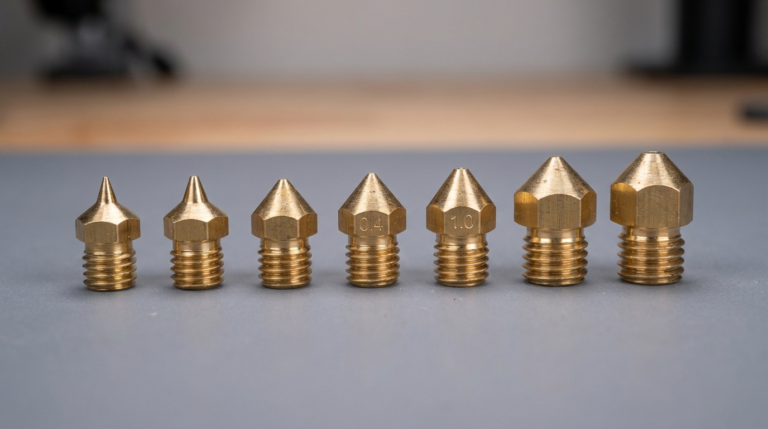
- Stock spare nozzles. They’re $5-10 each and the most common consumable. Keep 3-4 spares per printer.
- Budget for filament annually. Present it to administration like a recurring supply cost, not a one-time purchase. 3D printers without filament budget become paperweights.
My Top Recommendation
For most schools in 2026, the Bambu Lab P1S hits the sweet spot. Enclosed, fast, reliable, great software, reasonable price. If budget is tight, a fleet of A1 Minis with basic safety rules gets more students printing for less money. If education and curriculum are the priority over pure hardware, the Prusa MK4S with its education program is the best-supported option.
Don’t overthink it. The best 3D printer for a school is the one that works every day, doesn’t need constant maintenance, and lets students focus on designing and creating rather than troubleshooting.