Elegoo Neptune 4 Pro Review: Best Settings and Complete Guide for 2026
Why the Neptune 4 Pro Still Matters in 2026
When Elegoo launched the Neptune 4 Pro, it brought high-speed Klipper printing to a price point that shocked the industry. In 2026, the competition has caught up in some areas, but the Neptune 4 Pro remains one of the most capable printers you can buy for around $300. Its combination of genuine Klipper firmware, dual cooling fans, and a direct drive extruder makes it a serious contender against both Creality and Bambu Lab offerings.
Neptune 4 Pro Specifications
| Feature | Specification |
|---|---|
| Motion system | Bed-slinger (linear rails on X) |
| Build volume | 225 x 225 x 265mm |
| Max print speed | 500mm/s |
| Max acceleration | 10,000mm/s2 |
| Extruder | Direct drive, dual-gear |
| Nozzle temperature | Up to 300C |
| Bed temperature | Up to 110C |
| Auto bed leveling | Yes, 121-point mesh |
| Connectivity | USB, LAN, WiFi |
| Firmware | Klipper (stock, not a fork) |
| Web interface | Fluidd |
| Price (2026) | $280-$350 |
Setup and First Impressions
Assembly takes about 25-30 minutes. The printer ships in two main sections, and the process is standard for this class: bolt the gantry to the base, connect cables, mount the screen and spool holder.
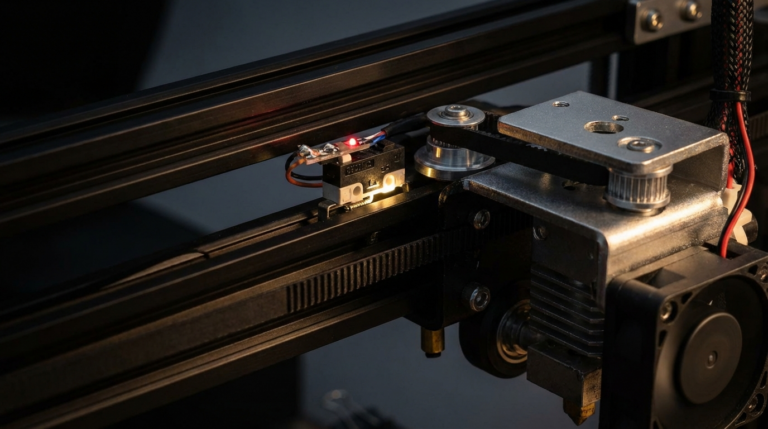
What stands out immediately is the build quality. The linear rail on the X-axis feels notably smoother than the V-slot wheels used on many competitors. The direct drive extruder has a solid feel with well-machined gears. The PEI-coated spring steel sheet provides reliable adhesion across materials.
The first-time calibration process runs automatically: bed mesh probing (121 points), input shaping measurement, and Z-offset calibration. The whole process takes about 5 minutes.
Print Quality Analysis
Standard Speed: 150mm/s
At 150mm/s, the Neptune 4 Pro produces prints that are indistinguishable from much slower printers. Layer lines are minimal at 0.2mm, surfaces are smooth, and dimensional accuracy consistently falls within 0.1mm. This is the speed we recommend for everyday printing where quality matters.
High Speed: 250mm/s
Bumping up to 250mm/s, quality remains very good. You will notice slightly more pronounced layer lines on curved surfaces and minor ringing on sharp corners, but the input shaping compensates well. A Benchy at this speed takes about 15 minutes.
Maximum Speed: 350-500mm/s
At 350mm/s and above, you start to see meaningful quality trade-offs. Ringing becomes visible, fine details lose definition, and overhangs suffer. These speeds work well for draft prints, jigs, or parts where appearance does not matter. We found 300mm/s to be the practical maximum for quality prints.
Cooling Performance
The dual-fan cooling system is genuinely excellent. Two radial part cooling fans provide enough airflow to handle high-speed PLA printing without drooping or sagging on overhangs. At 250mm/s, overhangs look clean up to 50-55 degrees, which is impressive for a bed-slinger at these speeds.
Best Settings for Elegoo Neptune 4 Pro
PLA Settings (Optimized)
| Parameter | Value |
|---|---|
| Nozzle temperature | 220-225C |
| Bed temperature | 60C |
| Print speed | 150-250mm/s |
| Travel speed | 300mm/s |
| Retraction distance | 0.5mm |
| Retraction speed | 45mm/s |
| Layer height | 0.2mm |
| Infill | 15-20% |
| Cooling fan | 100% after layer 3 |
| Acceleration | 5000-8000mm/s2 |
| Pressure advance | 0.025-0.035 |
Note on temperature: The Neptune 4 Pro runs hotter than traditional printers due to the high flow rates required at speed. The 220-225C range for PLA is correct for this printer.
PETG Settings
| Parameter | Value |
|---|---|
| Nozzle temperature | 240-245C |
| Bed temperature | 80C |
| Print speed | 100-150mm/s |
| Retraction distance | 0.4mm |
| Retraction speed | 40mm/s |
| Cooling fan | 40-60% |
| Acceleration | 3000-5000mm/s2 |
| Pressure advance | 0.04-0.05 |
PETG on the Neptune 4 Pro prints cleanly once you find the right retraction settings. The key is keeping retraction distance short (0.4-0.5mm) since it is a direct drive extruder. Longer retraction causes jams.
TPU Settings
| Parameter | Value |
|---|---|
| Nozzle temperature | 225-230C |
| Bed temperature | 50C |
| Print speed | 40-60mm/s |
| Retraction distance | 0.3mm |
| Cooling fan | 50% |
| Acceleration | 1000mm/s2 |
| Pressure advance | 0.0 (disabled) |
The direct drive extruder handles TPU much better than Bowden-tube printers. Keep speeds low and disable pressure advance for flexible filaments, as the algorithm does not work well with compressible materials.
Klipper: The Neptune 4 Pro Secret Weapon
The Neptune 4 Pro runs stock Klipper, not a customized fork like some competitors. This matters because it gives you access to the full Klipper ecosystem:
- Input shaping eliminates ringing and ghosting at high speeds
- Pressure advance sharpens corners by adjusting extrusion rate based on speed changes
- Fluidd web interface for remote control from any browser on your network
- Full macro support for automating repetitive tasks
- Community configs with thousands of tested configurations available
Having real Klipper rather than a proprietary fork also means firmware updates come from the Klipper community, and you can follow any Klipper tutorial online without worrying about compatibility.
Common Issues and Fixes
First Layer Not Sticking
The textured PEI bed is excellent, but it needs occasional cleaning. Wipe with isopropyl alcohol (90%+) before prints. If adhesion is still poor, clean with warm water and dish soap to remove oil buildup.
Stringing With PETG
Reduce retraction to 0.3-0.4mm and enable wipe on retract. PETG on direct drive extruders needs very short retractions; going above 0.6mm risks heat creep clogs.
WiFi Drops Connection
This is a known issue on some units. Use ethernet (the Neptune 4 Pro has a LAN port) for reliable wireless-free operation, or update to the latest firmware which includes WiFi stability fixes.
Nozzle Hitting Printed Parts at Speed
Enable Z-hop of 0.4mm in your slicer. At high speeds, slight warping on corners can catch the nozzle. Z-hop eliminates this risk.
Neptune 4 Pro vs the Competition
Neptune 4 Pro vs Creality Ender 3 V3
Both cost roughly the same. The Neptune 4 Pro has a direct drive extruder (better for flexibles), stock Klipper (more customizable), and linear rails (smoother motion). The Ender 3 V3 has CoreXZ (fundamentally better for speed than a bed-slinger). For raw speed, the V3 wins. For versatility and tinkering potential, the Neptune 4 Pro has an edge.
Neptune 4 Pro vs Bambu Lab A1 Mini
The A1 Mini costs less but has a much smaller build volume (180 x 180 x 180mm). It offers multi-color support via AMS Lite and has arguably better software. If you need the build volume, the Neptune 4 Pro is the obvious choice. If multi-color matters more than size, go Bambu.
Who Should Buy the Neptune 4 Pro?
The Neptune 4 Pro is ideal for Klipper enthusiasts who want a capable tuning platform, makers who print with multiple materials including TPU and PETG, anyone who wants a large build volume under $350, and tinkerers who enjoy optimizing their setup.
It is not ideal for users who want plug-and-play simplicity (Bambu Lab excels here), users who need multi-color out of the box, or users who need the absolute fastest speeds (CoreXY printers win).
Final Verdict
The Elegoo Neptune 4 Pro earns its place as one of the best 3D printers under $350 in 2026. It is not the fastest or the most polished, but it offers a rare combination of speed, versatility, and customization potential. The stock Klipper firmware, direct drive extruder, and solid cooling system make it a genuinely capable machine for both beginners ready to learn and experienced users who want full control.
If you value the ability to tweak every setting and run real Klipper macros, the Neptune 4 Pro is hard to beat at this price.