OctoPrint Dark Mode in 2026: 30-Second Setup, Built-In Themes, and Custom CSS If You Want Your Own
The 30-second answer: install Themeify
The fastest path to OctoPrint dark mode in 2026 is installing the Themeify plugin from the OctoPrint plugin manager and selecting the “Discoverd Dark” theme from its dropdown. Total time from clicking “Install” to a fully themed dark interface is under one minute on a modern Raspberry Pi running OctoPi. The plugin works on every OctoPrint version 1.5 and later, plays nicely with the mobile responsive layout, and applies its theming to the navigation bar, settings panels, terminal output, GCODE viewer, and timelapse module.
If you want more than one theme option, Themeify ships with twelve dark and dim variants out of the box — Discoverd Dark is the most popular, but Discoverd Discord, Discoverd Dim, Material Dark, and Discoverd OLED (true black for OLED panel users) are all in the standard installation. Switching themes is instantaneous and does not require restarting OctoPrint or refreshing the browser. Settings persist per OctoPrint user, so if you have multiple accounts (printer admin, household member, remote viewer) each can pick their own theme.
This article walks through installing Themeify cleanly, the alternative themes available beyond it, how to write your own custom CSS if none of the built-in themes work for your eyes, the dark-mode story for OctoPrint mobile apps, and a few common visual glitches that occasionally appear when running dark mode alongside other plugins.

Installing Themeify cleanly via the plugin manager
Open OctoPrint in your browser and go to Settings → Plugin Manager → Get More. Search for “Themeify” — the plugin author is “blakedaniels” and the current 2026 version is 1.4.x. Click Install. The plugin installs in about 15 seconds on a Raspberry Pi 4 (longer on a Pi Zero or older Pi 3). When OctoPrint prompts to restart, click Restart Now and wait for the interface to reload.
After restart, a new “Themeify” entry appears in the Settings sidebar near the bottom. Click it. The theme picker is a dropdown labeled “Theme”; select “Discoverd Dark” and save. The interface immediately re-themes — no browser refresh needed. The active theme is stored as a per-user setting, so log into a different account and you will see the default light theme until you set it for that user.
Themeify has additional toggles below the theme picker. The most useful ones are “Apply theme to TouchUI” (matches the mobile-responsive layout’s theme to the desktop), “Apply theme to GCODE Viewer” (themes the path preview backgrounds), and “Apply theme to Timelapse” (themes the timelapse video controls). Turn all three on; there is no good reason to leave them off.
Built-in themes worth knowing
Discoverd Dark is the default dark choice and is what most OctoPrint users mean when they say “dark mode”. Background is dark blue-grey (#21283b), text is light blue-grey, accent colours are subtle. Easy on the eyes for long print monitoring sessions. Fits the standard OctoPrint colour palette without feeling like a different application.
Discoverd OLED is true black background (#000000). Useful if you have a Pi-driven OLED display attached or run OctoPrint primarily on an OLED phone or laptop where true black saves power and looks visually deeper. The contrast ratio is higher than Discoverd Dark, which suits some users and feels harsh to others.
Material Dark applies Material Design 3 styling — flatter cards, larger touch targets, slightly different button styling. Comes from the same plugin author. Useful if your normal application aesthetic preference is Material Design, jarring if you are used to vanilla OctoPrint.
Discoverd Discord matches the colour scheme of the Discord chat application — dark backgrounds with the specific Discord blue and grey palette. Niche but pleasant for users who run Discord open on the same screen as OctoPrint and want visual consistency.
Discoverd Dim sits between full Dark and the default Light. Useful if Discoverd Dark feels too dark for your daytime printing environment but the default white feels too bright at night. Not as popular as the full dark options but worth trying if you switch frequently.
Custom CSS for users who want their own theme
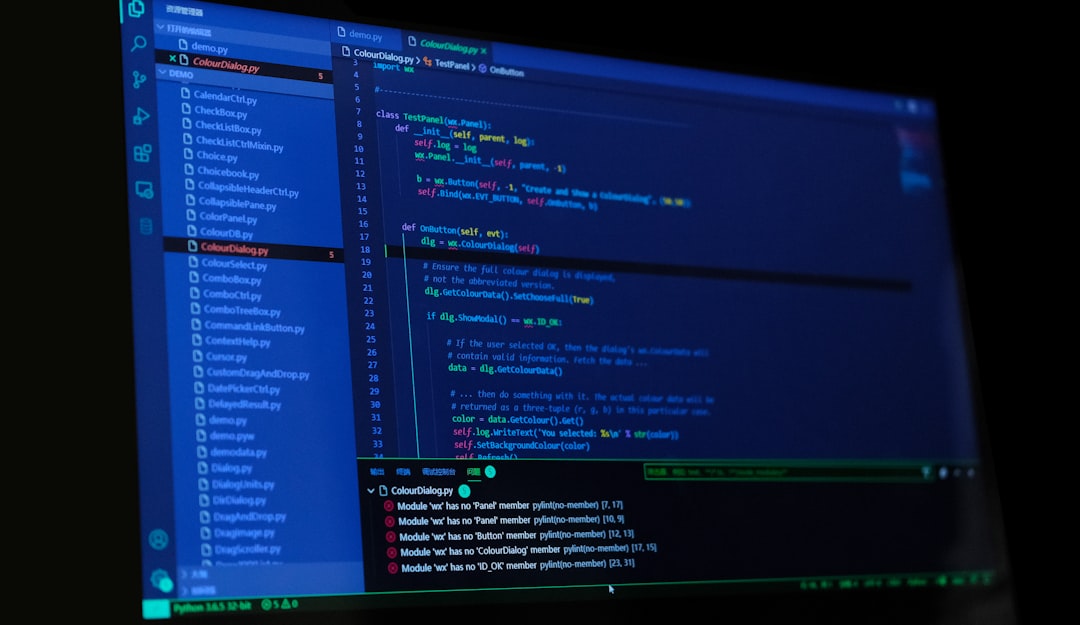
OctoPrint’s “Customizations” feature (built-in, not a plugin) lets you inject custom CSS into the application. Settings → Appearance → Customizations → enter custom CSS in the text box. This is how you build a theme that does not exist as a Themeify preset.
The most useful starting point is to inspect element on Themeify’s Discoverd Dark in the browser developer tools, copy the CSS rules that set the background and text colours, and modify them. The OctoPrint UI uses a small set of root-level CSS variables that Themeify overrides. If you target those variables in your custom CSS, your theme propagates throughout the entire interface without needing to override each individual element.
Common variables to override in 2026’s OctoPrint: --main-bg-color, --text-color, --accent-color, --secondary-bg-color, --border-color, --input-bg-color. Set these in a :root { ... } block at the top of your custom CSS and most OctoPrint pages will theme correctly. Plugin pages may not respect the variables — those need plugin-specific CSS targeting.
Save the CSS by clicking “Save” in the Customizations panel. Refresh the browser. The theme applies. To revert, clear the custom CSS field and save again — the default theme returns immediately.
Mobile app dark mode
The OctoPrint mobile experience splits into two paths. The first is the responsive web layout (TouchUI plugin or the built-in mobile responsiveness in OctoPrint 1.7+), accessed by visiting your OctoPrint URL on a phone browser. Themeify’s “Apply theme to TouchUI” option themes this path correctly; the dark mode shows up just like on desktop.
The second is dedicated mobile applications. Printoid (Android) has its own dark mode setting independent of the OctoPrint server theme — toggle it in Printoid’s settings, not via Themeify. OctoApp (iOS and Android) uses your phone’s system theme by default and switches automatically when your phone switches to dark mode at sunset. Octy Pi (web-based mobile dashboard) inherits the OctoPrint server theme via the plugin and will follow Themeify’s selection.
For users running OctoEverywhere (the cloud bridge for OctoPrint), the OctoEverywhere mobile interface is themed by their service independently and does not respect the local OctoPrint theme choice. OctoEverywhere has its own dark mode toggle in the OctoEverywhere account settings.
Common dark mode visual glitches
Some plugins ship their own light-mode-only CSS that does not respect Themeify’s variables. The plugin pages then show as light islands in an otherwise dark interface. The fix is plugin-specific custom CSS targeting that plugin’s specific selectors; check the OctoPrint subreddit or the plugin’s GitHub issues for community-shared CSS patches. The plugins most often affected in 2026 are PrettyGCode, Printoid Companion, and the older versions of OctoLapse.
The GCODE viewer occasionally shows a brief white flash when switching layers or zooming. This is a canvas redraw race condition between Themeify’s CSS injection and the GCODE viewer’s render loop. Usually disappears after one full layer-loading cycle. If persistent, disable the GCODE viewer’s auto-update setting and manually refresh after each layer.
Terminal output sometimes shows the wrong text colour for serial messages from the printer. This is the printer’s firmware sending ANSI colour codes that conflict with Themeify’s terminal CSS. Open Settings → Themeify → Advanced → “Strip ANSI from terminal” to fix. Mostly affects Klipper-based printers running through OctoPrint via the moonraker bridge.
Alternatives to Themeify if you do not want a plugin
Two paths exist for users who prefer not to install Themeify. The first is the OctoPrint built-in custom CSS Customizations feature already mentioned — write your own dark theme in roughly 30-50 lines of CSS and apply it without any plugin. This works but requires you to maintain that CSS yourself across OctoPrint version updates that may rename CSS classes.
The second is browser-level dark mode. Extensions like Dark Reader (Chrome, Firefox, Edge) auto-invert any web application to a dark colour scheme, and OctoPrint specifically renders acceptably under Dark Reader’s default settings. The downside is that browser-side dark mode does not propagate to other devices accessing the same OctoPrint instance — your phone will still show the light theme — and the inversion sometimes mangles status icons or the GCODE viewer’s background.
For a single-user single-device setup, Dark Reader plus a plugin-free OctoPrint is a clean approach. For households where multiple devices and people access the same OctoPrint, server-side theming via Themeify is the only approach that keeps everyone consistent without per-device configuration.
Why dark mode actually matters for OctoPrint
Most OctoPrint users keep the dashboard open in a browser tab next to their slicer, their email, or their video game. The default OctoPrint white background blasts out at 200+ nits next to whichever dark IDE or game UI you are running, then gets brighter still as you zoom into the camera feed for a print check. Dark mode brings the OctoPrint tab into the same brightness range as the rest of your screen and removes the eye-strain spike when you click between tabs.
Beyond the eye-strain win, dark mode helps print-monitoring at night. A printer running in a corner of the room produces enough light for the camera but not enough for your eyes; the bright white OctoPrint dashboard floods the room when you wake up to check on a long print. Dark mode keeps the bedroom dark while still letting you read the dashboard.
The Themeify plugin has been actively maintained since 2018 and is one of the few OctoPrint plugins with effectively zero drama in its release history — no breaking changes, no ownership transitions, no abandonment cycles. Installing it is a safe one-click operation that you can leave running indefinitely without worrying about future-proofing.
One last note for users running OctoPrint inside an iframe (some smart-display dashboards do this): Themeify’s CSS injection still works inside an iframe context because OctoPrint serves its own stylesheets from the same origin. Confirmed working with HomeAssistant’s webpage card, Hubitat dashboards, and the standalone Pi-fed touchscreen kiosk setups that are common for printer-side displays.