How to Fix Visible Layer Lines on 3D Prints: Complete Guide
What Causes Visible Layer Lines on 3D Prints?
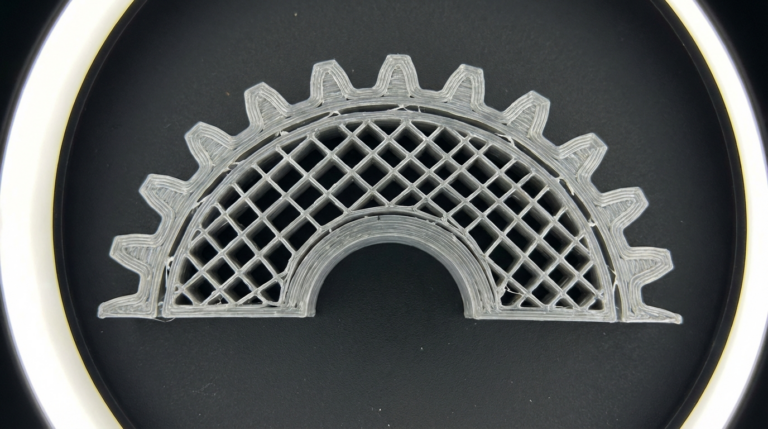
Every FDM 3D print is built layer by layer — that’s the fundamental nature of the technology. But when those layers become distractingly visible, something’s off. Visible layer lines (sometimes called “banding” or “ribbing”) can turn an otherwise good print into something that looks rough and unfinished.
The good news? Most causes of excessive layer lines are fixable with a few setting tweaks and mechanical checks. In this guide, I’ll walk you through every major cause and give you actionable fixes that actually work.
Understanding Layer Resolution vs. Layer Visibility
Before diving into fixes, let’s clarify something important: layer lines and layer height aren’t the same problem. A 0.2mm layer height will always show some lines — that’s physics. But when those lines are uneven, inconsistent, or more pronounced than expected, that’s a problem worth solving.
The difference between “acceptable layer lines” and “ugly layer lines” usually comes down to three factors: mechanical stability, temperature consistency, and extrusion accuracy.
1. Lower Your Layer Height
The most obvious fix is also the most effective. Reducing your layer height from 0.2mm to 0.12mm or even 0.08mm dramatically reduces visible lines. The trade-off is print time — a 0.12mm layer height roughly doubles your print time compared to 0.2mm.
Recommended layer heights by use case:
- Functional parts: 0.2mm — speed matters more than looks
- Display models: 0.12mm — good balance of quality and time
- Miniatures/detail work: 0.08mm — maximum quality, slowest speed
Keep in mind that your layer height should be a multiple of your stepper motor’s “magic number.” For most printers with standard lead screws, that’s 0.04mm. So 0.08, 0.12, 0.16, and 0.20 are all clean multiples.
2. Calibrate Your Z-Axis
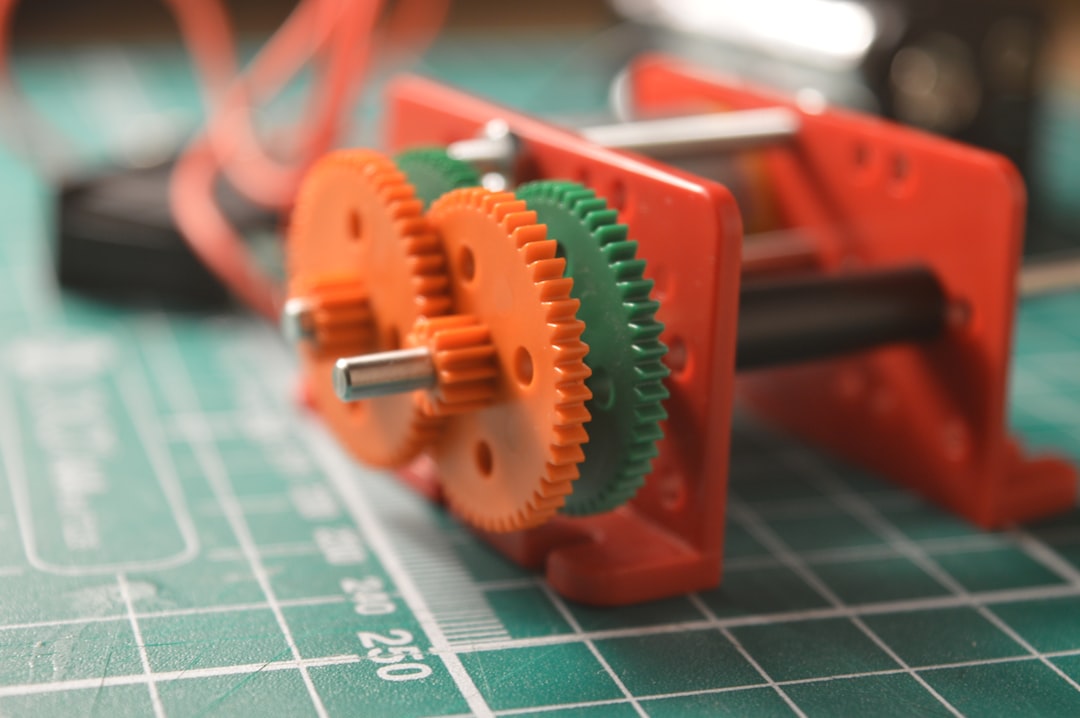
An inconsistent Z-axis is one of the sneakiest causes of uneven layer lines. If your Z-axis lead screw has wobble, binding, or backlash, you’ll see it as periodic patterns in your print — lines that get thicker and thinner in a repeating cycle.
How to check:
- Disconnect the lead screw coupler from the stepper motor
- Spin the lead screw by hand — it should rotate smoothly without binding
- Check that the lead screw is straight (roll it on a flat surface)
- Verify the anti-backlash nut isn’t worn out
Fixes:
- Replace bent lead screws (they’re cheap — about $8-15)
- Lubricate with PTFE dry lubricant (not WD-40)
- Install an anti-backlash nut if your printer doesn’t have one
- Use a flexible coupler instead of a rigid one to absorb wobble
3. Dial In Your Extrusion Multiplier
Over-extrusion makes layer lines bulge outward, creating a pronounced “ridge” effect. Under-extrusion creates gaps between layers that catch light and shadows differently, making lines more visible.
The calibration process:
- Print a single-wall calibration cube (no infill, 1 perimeter)
- Measure wall thickness with digital calipers
- If your nozzle is 0.4mm and the wall measures 0.44mm, you’re over-extruding by 10%
- Reduce your flow rate/extrusion multiplier accordingly
Most slicers default to 100% flow rate, but nearly every printer benefits from fine-tuning this to somewhere between 92-98%.
4. Optimize Print Temperature
Temperature affects how each layer bonds to the one below it and how the plastic flows. Too hot, and layers sag and bulge. Too cool, and layers don’t bond smoothly, creating visible seams between them.
Temperature tower test: Print a temperature tower that tests your filament across a range (usually 190-220°C for PLA). Look for the temperature zone where:
- Layer adhesion is strong (no delamination)
- Surface finish is smoothest
- Stringing is minimal
- Overhangs look clean
Most PLA prints best between 200-210°C, but this varies significantly between brands. Don’t assume — test it.
5. Reduce Print Speed for Outer Walls
Here’s a trick many beginners miss: you can set different speeds for inner and outer walls. Your inner walls and infill can print at 60-80mm/s, while your outer wall prints at 25-35mm/s for a much smoother surface.
In Cura, look for “Outer Wall Speed.” In PrusaSlicer, it’s “External perimeters speed.” This single setting change can dramatically improve surface quality without significantly increasing total print time, since outer walls are a small fraction of the total print.
6. Enable Variable Layer Height
Modern slicers like PrusaSlicer and Cura offer variable (or adaptive) layer height. This feature uses thinner layers on curved and detailed areas while using thicker layers on straight vertical sections.
The result? You get the surface quality of 0.08mm layers where it matters, with the speed of 0.2mm layers everywhere else. In PrusaSlicer, this is under “Variable layer height” in the plater view. It’s one of the most underused features in modern slicing.
7. Check Belt Tension
Loose belts cause inconsistent positioning, which shows up as uneven layers — especially on axes that change direction frequently. The X and Y belts should be tight enough to “twang” like a guitar string when plucked.
How to check:
- Push the print head by hand — it should move smoothly but with firm resistance
- Pluck the belt — it should make a low-pitched sound, not flop silently
- Look for worn teeth on the belt or pulleys
Many newer printers (Bambu Lab, Voron) have built-in belt tension measurement. If yours does, use it — aim for the manufacturer’s recommended range.
8. Post-Processing Techniques
Sometimes the best solution is to accept that FDM prints will have some layer lines and deal with them after printing:
- Sanding: Start at 120 grit, work up to 400-600 grit. Wet sanding with 800+ grit gives a near-glass finish on PLA
- Filler primer: Spray-on filler primer (like Rust-Oleum) fills minor layer lines before painting
- XTC-3D: A brush-on epoxy coating that self-levels and fills layer lines beautifully
- Vapor smoothing: Works for ABS (acetone vapor) and ASA — not recommended for PLA
For painted props and cosplay pieces, post-processing is almost always necessary regardless of print settings.
9. Upgrade Your Hotend
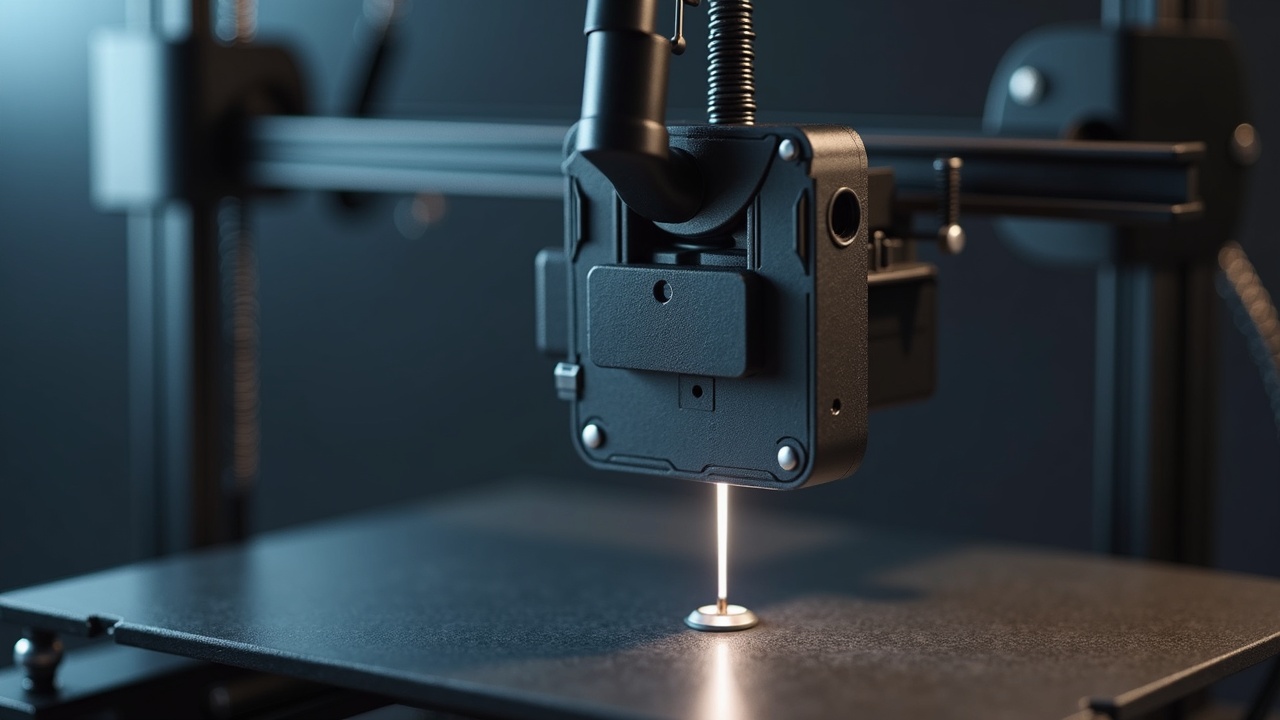
Stock hotends on budget printers often have inconsistent temperature control, which causes fluctuations in extrusion that show up as uneven layers. Upgrading to an all-metal hotend with a quality thermistor can make a noticeable difference.
Popular upgrades include the E3D V6, Micro Swiss all-metal, and the Bambu Lab hotend (for compatible printers). These maintain more consistent temperatures, which means more consistent extrusion, which means smoother layers.
10. Control Your Environment
Drafts and temperature fluctuations in your printing room affect print quality more than most people realize. A sudden gust from an air conditioner can cause one side of your print to cool faster, creating uneven layer lines.
Solutions:
- Use an enclosure (even a simple IKEA Lack enclosure helps)
- Keep the printer away from windows and HVAC vents
- Maintain a consistent room temperature (20-25°C is ideal)
- Close doors and windows during long prints
Quick Troubleshooting Checklist
If you’re seeing bad layer lines, work through this checklist in order:
- ✅ Calibrate E-steps and flow rate
- ✅ Run a temperature tower test
- ✅ Check belt tension on X and Y axes
- ✅ Inspect Z-axis lead screw for wobble
- ✅ Reduce outer wall speed to 25-35mm/s
- ✅ Try a lower layer height (0.12mm)
- ✅ Ensure consistent room temperature
- ✅ Check for loose frame bolts and eccentric nuts
The Bottom Line
Perfectly invisible layer lines on an FDM printer aren’t realistic — but barely visible ones absolutely are. The key is attacking the problem from multiple angles: mechanical stability, temperature consistency, proper calibration, and smart slicer settings.
Start with calibration (E-steps and flow rate), then work on your mechanical setup. Most people find that 80% of their layer line issues come from just two or three root causes. Fix those, and your prints will look dramatically better.
And remember — if surface finish is critically important for a specific project, post-processing is always an option. A few minutes of sanding and a coat of filler primer can make even a 0.2mm layer height print look injection-molded.