Pressure Advance and Linear Advance: Complete Tuning Guide for 3D Printers
What Are Pressure Advance and Linear Advance?
If you’ve ever noticed bulging corners, inconsistent line widths during speed changes, or blobby starts and stops on your prints, the culprit is often filament pressure dynamics inside your hotend. Pressure Advance (Klipper) and Linear Advance (Marlin) are firmware features designed to compensate for this by predicting and adjusting the extruder’s behavior in real time.
Think of your hotend like a syringe full of honey. When you push the plunger, there’s a delay before honey starts flowing. When you stop pushing, honey keeps oozing for a moment. The same thing happens with molten filament — the extruder gear pushes filament into the hotend, but the melted plastic inside acts as a compressible fluid with inherent lag.
Pressure Advance and Linear Advance solve this by adjusting how much filament the extruder pushes based on the upcoming speed changes. Before a corner (where the nozzle slows down), the extruder slightly retracts to reduce pressure. Before an acceleration (where the nozzle speeds up), it pushes a bit extra to pre-fill the melt zone.
Pressure Advance (Klipper) vs. Linear Advance (Marlin)
Both features solve the same problem, but they work slightly differently and have different names because they live in different firmware ecosystems:
- Linear Advance (LA): Marlin firmware’s implementation. Uses a “K-factor” to control the compensation amount. Currently on version 1.5 in Marlin 2.x.
- Pressure Advance (PA): Klipper firmware’s implementation. Also uses a tunable factor (confusingly also sometimes called K). Generally considered more refined due to Klipper’s architecture.
The calibration process and end result are nearly identical. If someone says “tune your LA” or “tune your PA,” they mean the same thing for different firmware.
Why You Need This
Without pressure compensation, you’ll see these artifacts — and you’ve probably already seen them without knowing the cause:
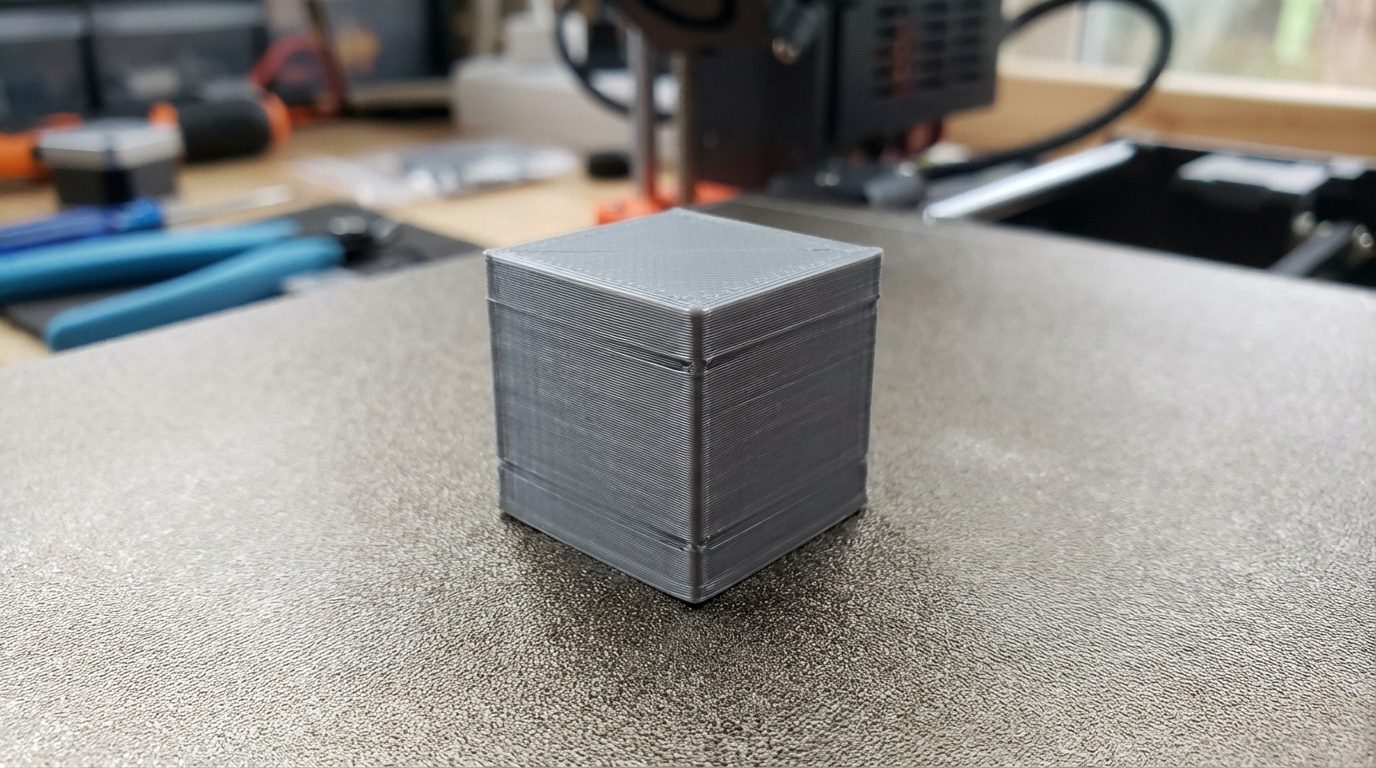
- Bulging corners: The nozzle slows for a corner, but the pressure built up in the hotend keeps pushing filament out, creating a blob or bulge at every direction change.
- Thin lines after speed-up: When the printer accelerates from a corner, the extruder starts pushing but the melt zone hasn’t pressurized yet, resulting in thin, under-extruded lines.
- Inconsistent line width: Any speed change creates a pressure mismatch that shows up as varying extrusion width.
- Blobby seams: Start and end points of perimeters accumulate extra material because pressure doesn’t release instantly.
These issues get worse at higher speeds. If you’re printing at 30mm/s, the effects are subtle. At 100mm/s+, they’re very visible. This is why speed-focused printers running Klipper almost always have Pressure Advance tuned — the feature is essential for quality at high speeds.
Prerequisites: Before You Start Tuning
Pressure Advance tuning should come AFTER these calibrations, not before:
- E-steps calibration: Make sure your extruder pushes exactly 100mm of filament when commanded to. If your E-steps are off, PA tuning will be wrong.
- Flow rate calibration: Print a single-wall cube and measure wall thickness. Adjust flow multiplier until walls match expected width.
- Temperature tuning: Print a temperature tower. Choose the best temperature for your filament before tuning PA.
- PID tuning: Stable temperatures are essential. Run PID autotune for both hotend and bed.
Tuning PA with uncalibrated E-steps is like adjusting your car’s alignment with flat tires — you’ll get a result, but it won’t be right.
Tuning Pressure Advance in Klipper
Method 1: The Tower Test (Recommended)
Klipper’s built-in test gradually increases the PA value as the print gets taller. You examine the result and pick the height where corners look best.
- Set your starting PA to 0: In your printer.cfg, under [extruder], set
pressure_advance: 0 - Generate the test G-code: Use Klipper’s pressure advance tuning script or download a pre-made PA tower STL from the Klipper documentation. The script method is preferred:
In your Klipper console, run:
SET_VELOCITY_LIMIT SQUARE_CORNER_VELOCITY=1 ACCEL=500
Then:TUNING_TOWER COMMAND=SET_PRESSURE_ADVANCE PARAMETER=ADVANCE START=0 FACTOR=.005 - Print a simple square tower at 50–100mm/s with moderate acceleration (1000–2000mm/s²).
- Examine the print: Look at each layer of the tower. At the bottom (PA=0), corners will be bulgy and rounded. As you go up, corners get sharper. At some point they’ll look perfect — sharp corners with no bulging, consistent line width. Above that, corners will start looking thin or have gaps.
- Calculate your PA value: Measure the height of the “sweet spot” in millimeters from the bottom. Multiply by the FACTOR you used:
PA = measured_height × layer_height × factorWait — actually the formula is simpler:
PA = measured_height * factor / layer_height
No, the correct formula from Klipper docs:pressure_advance = START + measured_height * FACTORFor example, if the best corners are at 40mm height with START=0 and FACTOR=.005: PA = 0 + 40 × 0.005 = 0.2
- Set the value in printer.cfg: Under [extruder], set
pressure_advance: 0.2(or whatever your result is). Save and restart Klipper.
Method 2: The Bowden Tube Test
If you have a Bowden setup, PA values are typically much higher (0.4–1.5 vs. 0.02–0.15 for direct drive). Use a larger FACTOR in the tuning tower:
TUNING_TOWER COMMAND=SET_PRESSURE_ADVANCE PARAMETER=ADVANCE START=0 FACTOR=.020
Typical PA Values
- Direct drive: 0.02–0.15
- Short Bowden (250mm tube): 0.3–0.7
- Long Bowden (400mm+ tube): 0.5–1.5
These are ballpark ranges. Your specific setup will vary based on filament type, temperature, nozzle size, and hotend design.
Tuning Linear Advance in Marlin
Step 1: Enable Linear Advance
Linear Advance isn’t always enabled by default in Marlin. You may need to compile custom firmware:
- Open
Configuration_adv.hin your Marlin source - Find
#define LIN_ADVANCEand uncomment it - Set
#define LIN_ADVANCE_K 0(you’ll tune it later) - Compile and flash the firmware
Important: Linear Advance 1.5 requires the extruder to use “linear” stepping mode, not “stealthChop.” If you’re using TMC2208/2209 drivers in stealthChop mode on the extruder, you’ll need to switch to spreadCycle, or LA won’t work properly. This causes many headaches for people who enable LA and see worse results instead of better — the driver mode is almost always the reason.
Step 2: Print the K-Factor Test Pattern
Marlin’s community provides an excellent online tool at marlinfw.org/tools/lin_advance/k-factor.html that generates a test pattern G-code file customized for your printer.
- Enter your printer’s specifications (bed size, nozzle size, filament diameter)
- Set the K-factor range: 0 to 2.0 for Bowden, 0 to 0.3 for direct drive
- Download the generated G-code
- Print it
The test pattern prints a series of lines at different speeds with different K values. Each row uses a different K value, printed on the left edge of the pattern.
Step 3: Read the Results
Look at each row. You want the row where:
- The line width is consistent between the slow section and the fast section
- There are no blobs at speed transitions
- Corners (if included) are sharp, not rounded
Note the K value for that row.
Step 4: Apply the K Value
You can set the K-factor permanently in firmware or per-print in your slicer’s start G-code:
M900 K0.45 (replace 0.45 with your value)
Adding this to your start G-code is often better than hardcoding in firmware, because different filaments may benefit from slightly different K values.
Fine-Tuning Tips
Different K Values for Different Filaments
Each filament type (and sometimes each brand) has slightly different melt viscosity, which means the optimal PA/K value changes. Keep a notebook or spreadsheet:
- PLA: Typically lower values (less viscous when molten)
- PETG: Slightly higher values (more viscous)
- ABS: Similar to PLA
- TPU: Very high values due to compressibility (but PA/LA works differently with flexible filaments — some users disable it)
In your slicer, you can set different K values per filament profile using the M900 command (Marlin) or SET_PRESSURE_ADVANCE (Klipper) in the filament start G-code.
Smooth Time (Klipper Only)
Klipper has a second PA parameter: pressure_advance_smooth_time. This controls how smoothly the PA adjustments are applied. The default (0.040 seconds) works well for most setups. Only change this if you see vibration or artifacts that you can trace to PA adjustments being too aggressive.
Interaction with Other Settings
- Retraction: Properly tuned PA reduces the need for aggressive retraction settings. After tuning PA, try reducing your retraction distance by 0.5–1mm.
- Acceleration: PA works best with moderate to high acceleration values. If your acceleration is very low, PA has less to compensate for and the effect is subtle.
- Jerk/Square Corner Velocity: These interact with PA. Some users lower jerk after enabling PA for even smoother results.
- Coasting: If you were using coasting (stopping extrusion before the end of a line), you can often disable it after tuning PA. The two features overlap in purpose.
Troubleshooting
Corners Look Worse After Tuning
If your corners look worse with PA/LA enabled than without, check these:
- TMC driver mode (Marlin): Extruder must be in spreadCycle, not stealthChop
- Value too high: Over-compensated PA causes divots and gaps at corners instead of bulges
- E-steps wrong: Go back and verify E-steps calibration
- Max extrusion rate exceeded: If PA needs to push filament faster than your hotend can melt it, you get skipping. Lower your print speed or increase hotend temperature.
Extruder Clicking/Skipping During PA
PA sometimes demands instantaneous extrusion rates that exceed what your hotend can handle. Solutions:
- Increase nozzle temperature by 5–10°C
- Reduce maximum print speed
- Use a higher-flow hotend (larger melt zone)
- Lower the PA value slightly (trading some quality for reliability)
Inconsistent Results
If PA seems to work great on one print and poorly on another, suspect temperature fluctuations. Run PID autotune and ensure your hotend temperature stays within ±2°C during printing. Large swings change the melt viscosity, which changes the ideal PA value in real-time.
Before and After: What to Expect
Properly tuned Pressure Advance or Linear Advance delivers:
- Sharp corners instead of rounded, bulgy ones
- Consistent line width regardless of speed changes
- Cleaner seams with less blobbing at layer starts
- Better dimensional accuracy especially on parts with many direction changes
- Reduced need for retraction and coasting workarounds
The improvement is most dramatic on prints with lots of corners, small features, or high print speeds. On simple, slow prints, the difference is subtle.
Final Thoughts
Pressure Advance and Linear Advance are among the highest-impact calibrations you can make on your 3D printer. They’re free (just a firmware feature and some test prints), they’re permanent once tuned, and they improve virtually every print you make afterward.
The process takes about 30 minutes and one or two test prints. That’s a tiny investment for a permanent quality upgrade. If you haven’t tuned PA/LA yet and you’re chasing print quality issues, this should be at the top of your list — right after E-steps and flow calibration.
Tune it once, save the value per filament, and enjoy sharper corners for life.