How to Use Ironing in Cura for Glass-Smooth 3D Print Top Surfaces
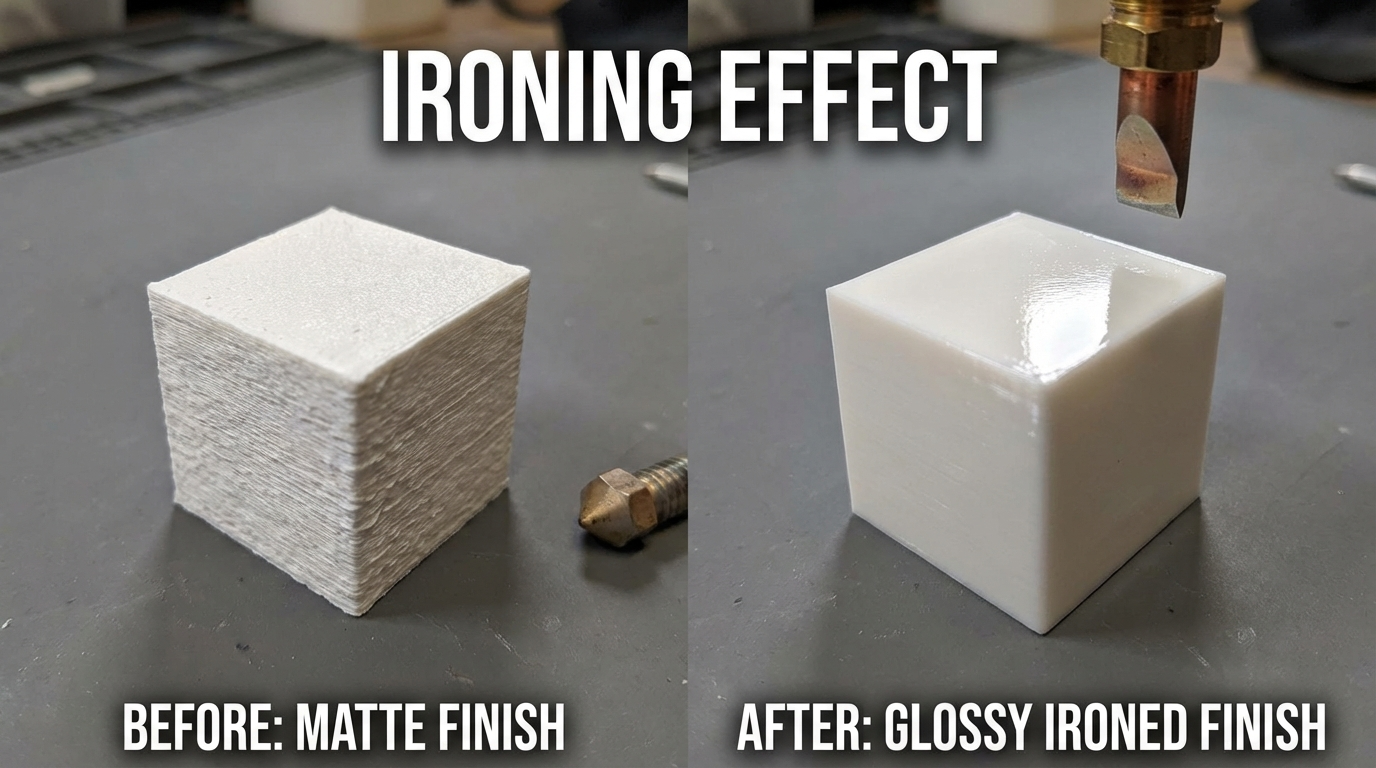
If you’ve ever looked at the top surface of an FDM print and wished it was smoother, ironing is the answer. This Cura feature runs the hot nozzle back over the top layer with minimal extrusion, effectively melting and flattening the surface. The result is a noticeably smoother, more professional finish — and it adds surprisingly little to your print time. Here’s how to set it up properly and when it’s worth using.
What Is Ironing in 3D Printing?
Ironing is a post-processing pass that happens automatically during printing. After the slicer finishes the top layer normally, it sends the nozzle back across the surface in a zigzag pattern at reduced speed, with the flow rate turned down to just a trickle (typically 10-15% of normal flow). The residual heat from the nozzle remelts the top surface and smooths out the lines between extrusion paths.
Think of it like running a hot iron over wrinkled fabric — the heat and contact flatten out imperfections. The extra filament that does come through fills in any tiny gaps between the top-layer lines, creating a near-glassy finish on flat horizontal surfaces.
Ironing was introduced in Cura 2.7 and has been refined through subsequent versions. It’s also available in PrusaSlicer (called “Ironing”) and OrcaSlicer. The principles are the same across slicers, though the setting names may differ slightly.
When to Use Ironing
Ironing shines in specific situations:
- Flat top surfaces — name plates, signs, box lids, enclosure panels
- Visual presentation models — architectural models, display pieces, prototypes for client review
- Surface labeling — when you need to apply stickers or labels to a flat printed surface
- Mating surfaces — two parts that need to sit flush against each other benefit from ironed contact faces
- Lithophane tops — can improve the smooth-side finish
When NOT to Use Ironing
- Parts with complex top geometry — lots of holes, thin features, or detailed contours cause the ironing pass to leave artifacts
- Speed-priority prints — ironing adds time, and if the surface doesn’t matter, skip it
- Flexible or soft filaments (TPU) — the extra nozzle pressure can deform the surface
- Parts that will be sanded/painted anyway — post-processing will smooth the surface regardless
Cura Ironing Settings Explained
Enable Ironing
In Cura, search “ironing” in the settings search bar, or find it under Shell > Ironing. Tick the checkbox to enable. You’ll see several sub-settings appear:
Ironing Pattern
Two options:
- Zigzag (default) — the nozzle moves back and forth in straight lines. Best for large flat surfaces. Creates the smoothest finish on rectangular areas.
- Concentric — the nozzle follows the contour of the part inward. Better for round or organic shapes. Can leave a visible spiral mark in the center.
For most parts, zigzag works best. Use concentric only for round parts where the zigzag would create visible direction changes at the edges.
Ironing Line Spacing
Default: 0.1mm. This controls how close together the ironing passes are. Smaller values create a smoother surface but take longer. The default 0.1mm is fine for most uses. Going below 0.05mm adds significant time with diminishing returns. Up to 0.2mm is acceptable for less critical surfaces.
Ironing Flow
Default: 10%. This is the percentage of normal flow rate used during ironing. The goal is to extrude just enough filament to fill micro-gaps without creating excess material that blobs on the surface.
- Too high (>15%) — leaves ridges or blobs as excess filament accumulates
- Too low (<5%) — doesn’t fill gaps, and can cause the nozzle to drag across dry plastic, creating a rough texture
- Sweet spot: 8-12% — enough flow to fill gaps, not enough to create artifacts
This is the most important setting to tune. Start at 10% and adjust based on results.
Ironing Speed
Default: varies by profile, usually around 15-20mm/s. Slower speeds give the heat more time to melt and flatten the surface. Faster speeds cover more area but with less smoothing effect.
- 10-15mm/s — maximum smoothness, significant time addition
- 15-25mm/s — good balance of quality and speed (recommended)
- >30mm/s — minimal smoothing effect, hardly worth enabling
Ironing Inset
Default: 0.38mm. This controls how far from the edge of the surface the ironing starts. The ironing pass doesn’t go all the way to the outer wall — it stops short by this amount to avoid creating a raised ridge at the perimeter. The default works well; only adjust if you see edge artifacts.
Ironing Only Highest Layer
When enabled, ironing only applies to the very top of the model — not every top surface at every height. This is usually what you want. If disabled, every surface that faces upward gets ironed, including intermediate flat areas inside the model, which dramatically increases print time with little benefit.
Step-by-Step: Setting Up Ironing in Cura
- Open your model in Cura and select your print profile
- Search “ironing” in settings or navigate to Shell > Ironing
- Enable Ironing — check the box
- Set pattern to Zigzag for flat/rectangular surfaces
- Set flow to 10% as starting point
- Set speed to 20mm/s
- Leave line spacing at 0.1mm
- Enable “Ironing Only Highest Layer” unless you specifically need intermediate surfaces smoothed
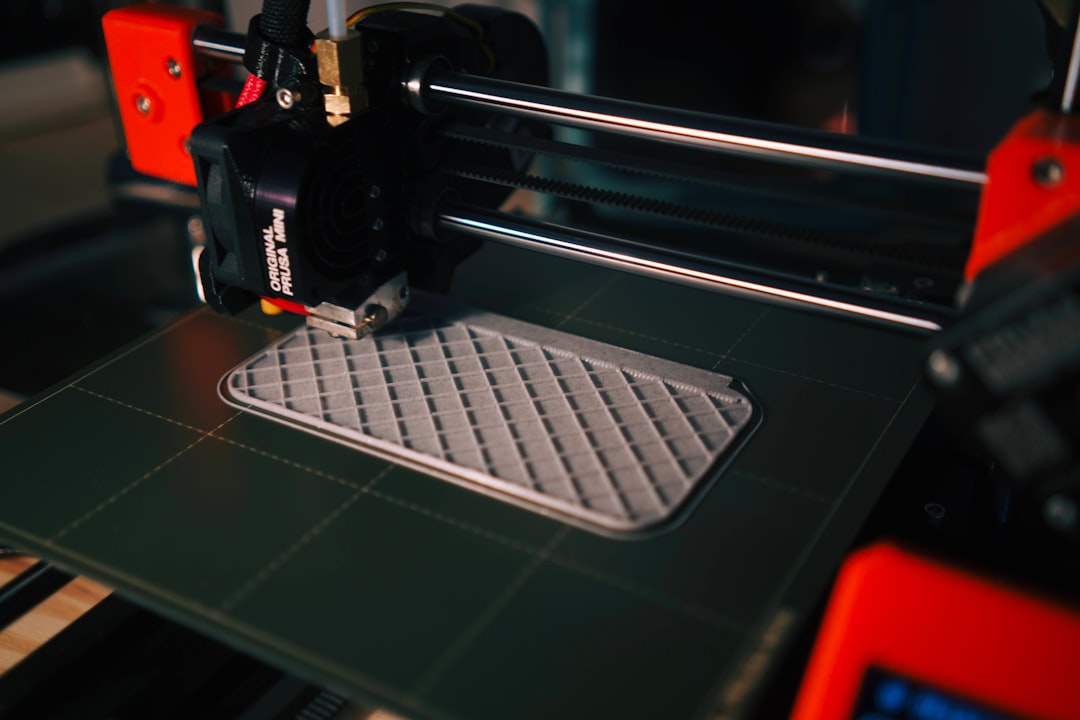
- Slice and preview — in the layer view, you’ll see the ironing pass as a separate movement on top layers
- Print a test piece — a simple 40x40x5mm box is perfect for dialing in settings
Ironing with Different Filaments
PLA
PLA is the easiest material to iron. It melts cleanly, re-solidifies quickly, and produces excellent surface finish. Use default settings (10% flow, 20mm/s). PLA ironing creates an almost injection-molded look on flat surfaces.
PETG
PETG is trickier. It’s stickier than PLA and can leave strings or blobs during the ironing pass. Reduce flow to 8% and increase speed slightly to 25mm/s. You may still see some minor imperfections, but the overall surface will be significantly smoother than without ironing.
ABS/ASA
Works well with ironing, though ABS’s tendency to warp can cause slight lifting at edges during the ironing pass. Ensure your enclosure temperature is stable. Settings similar to PLA work fine — 10% flow, 20mm/s.
TPU/Flexible
Not recommended. The nozzle pressure during ironing can deform the soft top layer, and the material’s flexibility means it doesn’t hold the smoothed shape well. If you must try, use very low flow (5%) and higher speed (30mm/s).
Troubleshooting Ironing Issues
- Blobs or ridges on the surface — flow too high. Reduce by 2% increments until smooth.
- Rough scratchy surface — flow too low or speed too high. Increase flow to 12% or slow down.
- Lines visible in ironing direction — line spacing too wide. Reduce to 0.08mm.
- Edge raised higher than center — ironing inset too small. Increase by 0.1mm.
- Surface looks worse than without ironing — usually means the top layer itself has issues (under-extrusion, insufficient top layers). Fix the base top layer first: use at least 4-6 top layers before ironing.
- Ironing takes too long — increase line spacing to 0.15mm and speed to 25mm/s. Or enable “Ironing Only Highest Layer.”
Ironing vs Other Smoothing Methods
How does ironing compare to other ways of achieving a smooth top surface?
- Sanding — more work, but works on all surfaces including walls. Ironing only affects top-facing surfaces.
- Acetone vapor smoothing (ABS only) — creates a glossy finish everywhere but rounds off sharp edges and fine details.
- Resin coating / filler primer — adds material and requires drying time, but produces the smoothest possible finish.
- More top layers — adding extra top layers (8+) improves surface quality even without ironing, but ironing on top of adequate layers is the best combo.
Ironing’s advantage is that it’s free (no extra material or labor), automated (set it and forget it), and adds minimal time. The disadvantage is it only works on horizontal top surfaces — vertical walls and overhangs are unaffected.
Final Thoughts
Ironing is one of those features that makes you wonder why you didn’t enable it sooner. For any print with visible flat top surfaces, it transforms the quality from “clearly 3D printed” to “is that injection molded?” with almost no downside. Start with the defaults, print a test square, and fine-tune from there. Once you see the difference, you’ll never go back to un-ironed top layers.