3D Print Cooling Fan Settings: The Complete Optimization Guide
Cooling is one of the most misunderstood variables in FDM 3D printing. Get it right, and your prints have crisp overhangs, clean bridging, and sharp details. Get it wrong, and you’re dealing with droopy layers, warping, poor layer adhesion, or all three at once. The challenge is that \”right\” means different things for different filaments, geometries, and print situations.
In this guide, I’ll break down exactly how part cooling works, when to use it, when to turn it off, and how to optimize your fan settings for every common filament type.
What Part Cooling Actually Does
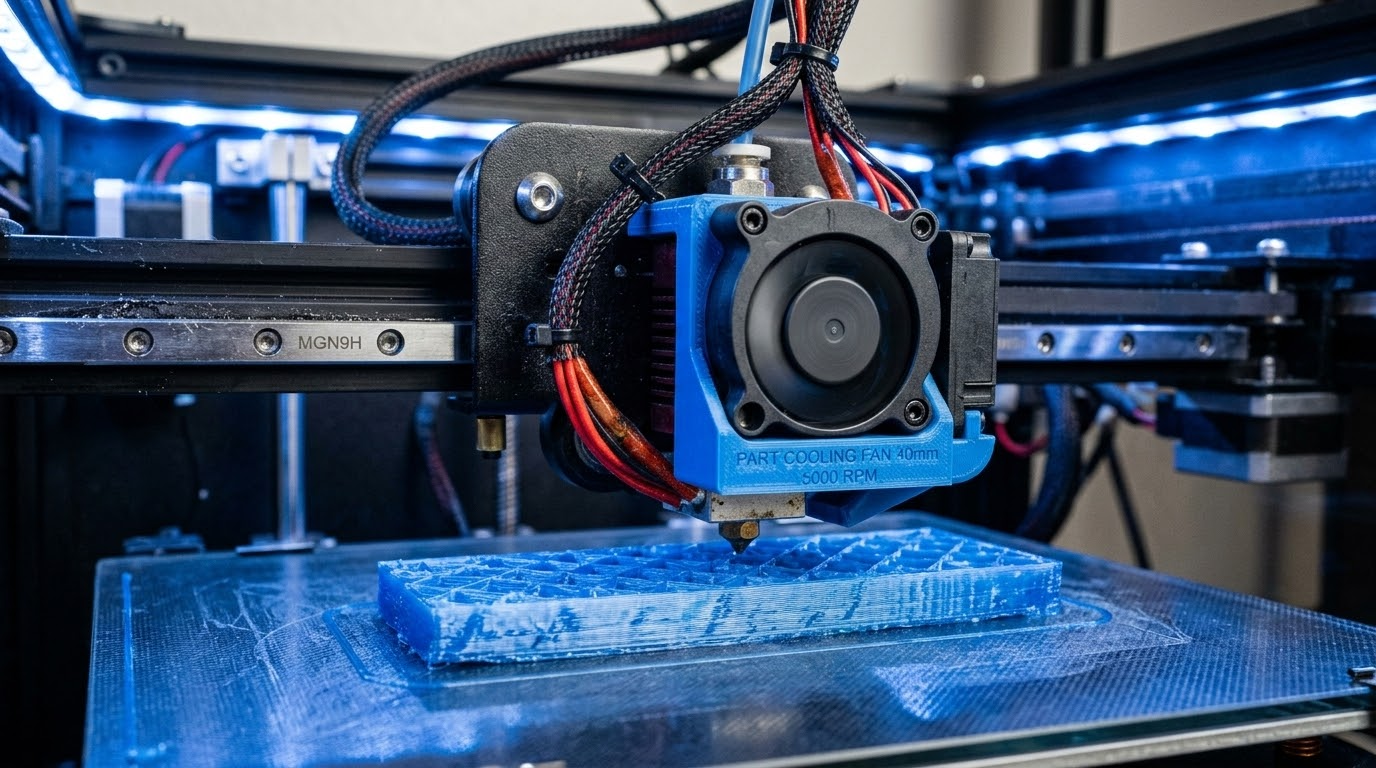
The part cooling fan blows air directly onto your print, right where fresh filament is being deposited. Its job is to solidify the molten plastic as quickly as possible after extrusion. Without cooling, each new layer sits on still-warm, slightly soft plastic underneath. With cooling, the previous layer firms up before new material arrives.

This might sound like more cooling is always better, but that’s far from true. There’s a constant tension between two opposing needs:
- More cooling = better detail. Rapid solidification gives you sharper corners, cleaner overhangs, and less sagging on bridges. Small features and thin walls especially benefit from aggressive cooling.
- Less cooling = better layer adhesion. When layers cool too fast, they don’t bond as strongly to the layer below. This can cause delamination, weak parts, and visible layer lines. Heated bed adhesion also suffers if cooling is too aggressive on lower layers.
Every material has a sweet spot where you get enough cooling for good surface quality without sacrificing layer bonding. Finding that sweet spot is what this guide is about.
PLA: Maximum Cooling (Almost Always)
PLA is the easiest material to cool properly because it benefits from aggressive cooling in nearly all situations. The recommended fan settings are:
- First layer: Fan OFF (0%). You want maximum adhesion to the bed.
- Second layer: Ramp up to 50%.
- Third layer and beyond: 100% fan speed.
PLA has a relatively low glass transition temperature (around 60°C), meaning it softens easily. Fast cooling locks it into shape before gravity and the heat from the nozzle cause deformation. This is why PLA gives the best overhangs and bridges of any common FDM filament — the material responds perfectly to aggressive cooling.
The only exception is when printing very large, solid PLA parts where layer adhesion matters more than surface finish. In that case, reducing fan to 70-80% can improve interlayer bond strength slightly.
PETG: The Cooling Compromise
PETG is where cooling gets tricky. Too much cooling causes the layers to become brittle and reduces the material’s excellent layer bonding. Too little cooling and you get stringing, blobbing, and poor overhangs.
- First 3 layers: Fan OFF (0%).
- Layer 4 onwards: 30-50% fan speed. Never go above 60%.
- Bridges: Temporarily increase to 70-80% for bridging moves only (most slicers support bridge-specific fan overrides).
PETG also exhibits a phenomenon called \”curling\” — where freshly deposited plastic curls upward as it cools, creating rough surfaces and potential nozzle collisions. Moderate cooling (40-50%) combined with proper z-hop settings minimizes this. If you see your nozzle catching on curled PETG edges, you likely need slightly more cooling, not less.
ABS and ASA: Minimal to No Cooling
ABS and ASA are the anti-PLA when it comes to cooling. These materials are highly prone to warping due to thermal contraction, and aggressive cooling makes this dramatically worse.
- Enclosed printer: Fan OFF (0%) for the entire print. The enclosure maintains ambient temperature that provides sufficient, even cooling.
- Open printer: Fan OFF or 10-20% maximum. Even with low fan speeds, expect more warping than with an enclosure.
- Bridges and overhangs: You can temporarily enable 20-30% fan for bridging, but keep it minimal.
If you’re printing ABS or ASA on an open-frame printer, the best cooling strategy isn’t about fan settings at all — it’s about building or buying an enclosure. A simple cardboard or foam board enclosure dramatically improves ABS print quality by preventing drafts and maintaining a warm ambient temperature around 35-45°C.
TPU and Flexible Filaments: Light and Steady
Flexible filaments like TPU have unique cooling needs because they remain soft and flexible after cooling. The goal is to prevent the material from staying molten long enough to string or deform, without causing it to cool so fast that layers don’t bond.
- First 3 layers: Fan OFF.
- Layer 4 onwards: 30-50% fan speed.
- Fine details: Can increase to 60% for small features.
TPU prints slowly (20-40mm/s is typical), so each layer has more time to cool naturally before the next layer arrives. This means you often need less active cooling than the fan percentage might suggest.

Advanced Cooling Techniques
Minimum Layer Time
Most slicers have a \”minimum layer time\” setting that slows down printing or lifts the head if a layer would complete too quickly. This is crucial for small prints where the nozzle returns to the same spot before the previous layer has cooled.
Set minimum layer time to 10-15 seconds for PLA, 15-20 seconds for PETG. If your slicer has a \”lift head\” option, enable it — this moves the nozzle away from the print during the wait, preventing heat damage to the part.
Fan Speed Ramping
Instead of jumping from 0% to full speed, gradually ramp your fan speed over the first 3-5 layers. This helps the lower layers bond firmly to the bed while transitioning to full cooling for the upper portions. Most slicers call this \”fan ramp-up\” or \”gradual fan speed.\”
Bridge-Specific Overrides
Bridges benefit dramatically from temporary cooling increases. In PrusaSlicer, OrcaSlicer, and Cura, you can set bridge-specific fan speeds separate from your general cooling settings. I recommend:
- PLA bridges: 100% fan
- PETG bridges: 70-80% fan
- ABS bridges: 30-40% fan (just enough to solidify before sagging)
Per-Layer Fan Overrides
Some prints have sections that need different cooling — for example, a solid base that needs maximum layer adhesion, followed by thin fins or overhangs that need aggressive cooling. OrcaSlicer and PrusaSlicer allow per-height or per-layer fan speed adjustments that let you optimize cooling throughout the print.
Upgrading Your Cooling System
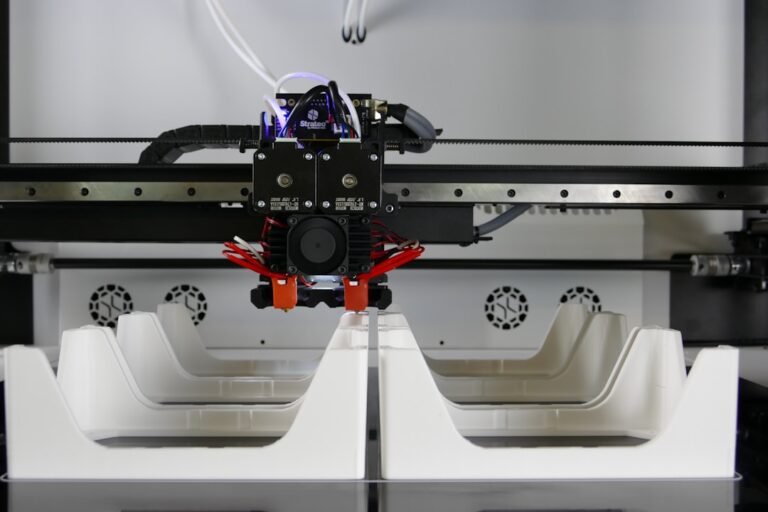
The stock cooling fan and duct on most budget printers leave room for improvement. Common upgrades include:
- Dual 5015 blower fans: Two fans provide more even airflow from both sides of the nozzle, reducing \”good side / bad side\” overhang quality differences.
- Printed fan ducts: Designs like the Hero Me Gen 7 or Briss Fang direct airflow more precisely at the nozzle tip. These are free to download and print.
- Larger fans: Replacing a small 4010 axial fan with a 5015 radial blower significantly increases maximum airflow at the same noise level.
- Noctua fans: Premium quiet fans that reduce noise while maintaining adequate airflow. Best for printers in living spaces.
A word of caution: upgrading your cooling system will likely require recalibrating your fan speeds for every material. What was 50% on a weak stock fan might be overwhelming at 50% on a powerful blower upgrade.
Troubleshooting Cooling-Related Issues
Poor overhangs on one side only: Your fan duct isn’t providing even airflow. The \”good\” side faces the fan, the \”bad\” side is in a wind shadow. Solution: upgrade to a dual-fan setup or rotate your model 180° on the build plate.
Warping despite correct bed temperature: Too much fan cooling on lower layers pulls the part away from the bed. Disable fan for the first 3-5 layers, not just the first one.
Delamination / weak layer bonding: Fan speed may be too high for your material. Reduce by 10-20% and test again. Also check that your nozzle temperature isn’t too low — proper cooling compensates for many issues, but it can’t fix under-temperature extrusion.
Stringing despite good retraction settings: Insufficient cooling lets the nozzle continue oozing during travel moves because the material stays molten longer. Increase fan speed and ensure your duct is actually directing air at the nozzle tip, not into the surrounding air.
Quick Reference: Fan Speed by Material
- PLA: 100% (first layer off)
- PETG: 30-50% (first 3 layers off)
- ABS/ASA: 0-20% (use enclosure instead)
- TPU: 30-50% (first 3 layers off)
- Nylon: 0-30% (keep warm for adhesion)
- Polycarbonate: 0% (enclosure mandatory)
- HIPS: 50-80%
Final Thoughts
Part cooling is one of those settings that beginners often set once and forget, but it deserves as much attention as temperature and speed. The right fan speed can transform a mediocre print into a great one — or a great setup into a failed print if misconfigured. Start with the material-specific recommendations above, then fine-tune based on your specific printer, fan hardware, and the geometry of what you’re printing. Your overhangs will thank you.