Best 3D Printer for Education and Classrooms in 2026
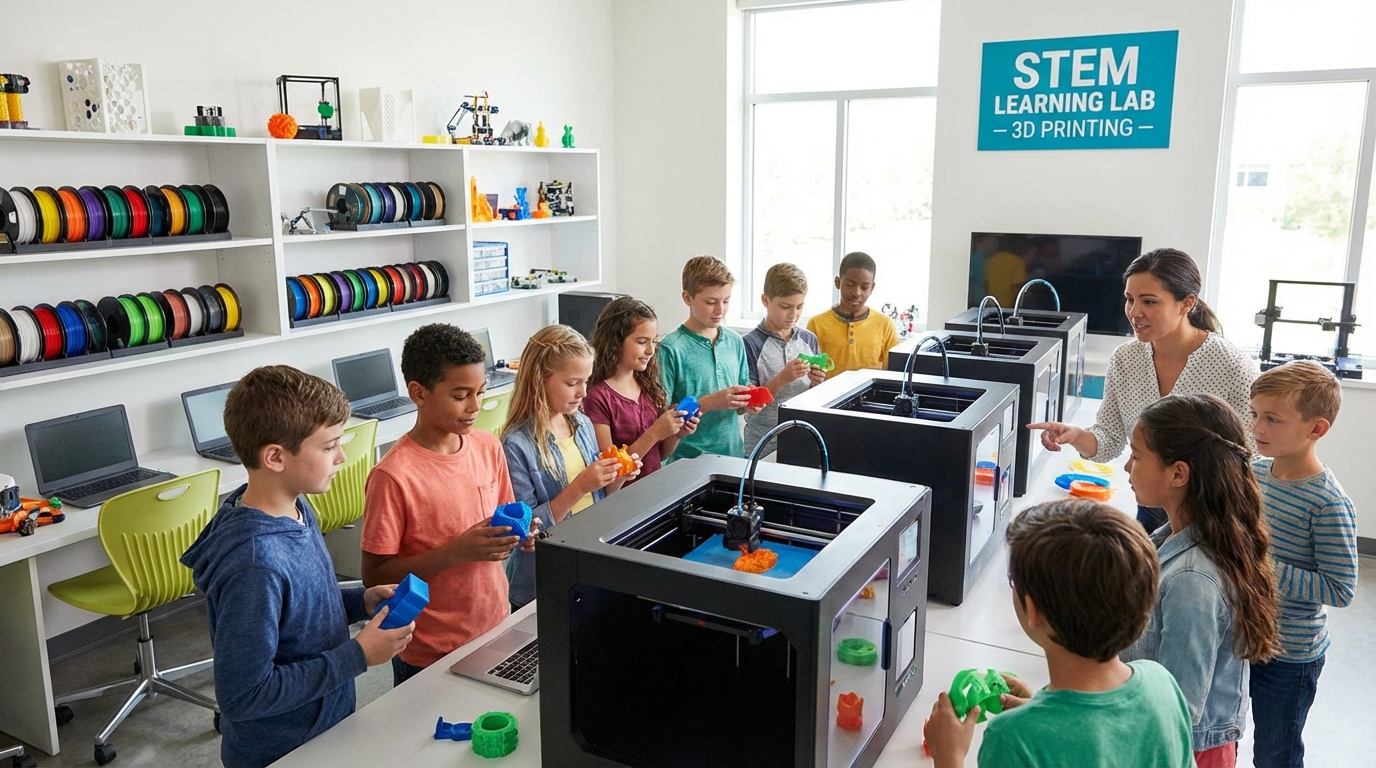
3D printers have moved from “cool tech toy” to essential classroom tool faster than most educators expected. From elementary STEM labs to university engineering departments, 3D printing in education is transforming how students learn design thinking, problem-solving, and hands-on engineering. But choosing the right printer for a school setting is very different from picking one for your home workshop. In this guide, I’ll cover the best 3D printers for classrooms in 2026, what to look for, and how to make the most of this technology in an educational environment.
Why Schools Need 3D Printers
The benefits of 3D printing in education go far beyond “making cool stuff” (though that definitely helps with student engagement):
- Design thinking: Students learn to identify problems, brainstorm solutions, prototype, test, and iterate. This is the engineering design process in miniature.
- Cross-curricular applications: Math (geometry, scale, measurement), science (materials, physics), art (sculpture, architecture), and technology all intersect at the 3D printer.
- Tangible learning: Abstract concepts become physical objects. A student who prints a topographic map understands contour lines in a way that no textbook can replicate.
- Career preparation: 3D printing, CAD skills, and rapid prototyping are increasingly valued across industries from manufacturing to medicine.
- Engagement: Nothing motivates students like seeing their ideas materialize into real objects they can hold.
What to Look for in a Classroom 3D Printer
A great home printer doesn’t automatically make a great classroom printer. Schools have unique requirements:
Safety First
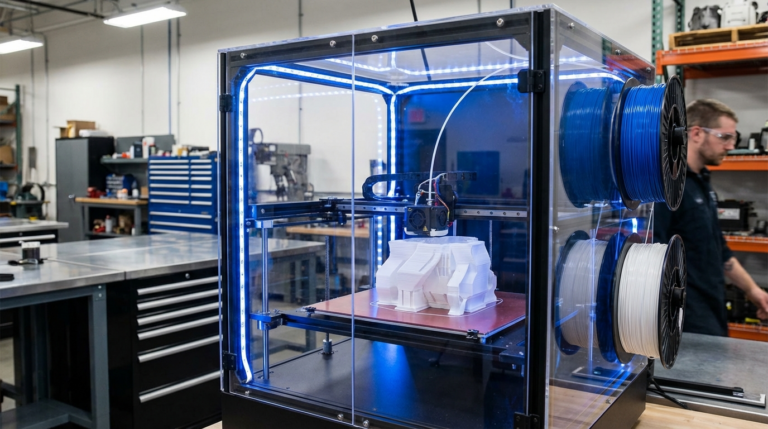
Enclosed build chamber: Non-negotiable for K-12 settings. An enclosed printer keeps curious fingers away from the hot nozzle (200°C+) and the heated bed. Printers like the Bambu Lab A1 Mini with its optional enclosure, the FlashForge Adventurer series, and the Dremel DigiLab all prioritize enclosed designs.
PLA-only capability is fine. PLA is non-toxic, doesn’t produce harmful fumes, and doesn’t require heated beds or enclosures for print quality. For most educational applications, PLA is the only filament you need. Avoid printers that require ABS — the styrene fumes have no place in a classroom.
HEPA filtration: Even PLA produces ultrafine particles during printing. Printers with built-in air filtration (like the Bambu Lab series with their carbon filters or the Up Box+) are preferred for classroom use, especially for younger students.
Reliability and Ease of Use
Auto bed leveling: Teachers don’t have time to manually level print beds between classes. Auto bed leveling (ABL) is essential in a classroom setting where multiple people use the same machine.
Plug-and-play setup: The best classroom printers work out of the box with minimal assembly. Printers that require extensive calibration, firmware tweaking, or mechanical adjustment aren’t practical when a teacher has 30 minutes of prep time.
Consistent results: Students get discouraged by failed prints. A reliable printer that produces good results consistently is more valuable than one that produces amazing results sometimes and fails spectacularly other times.
Budget and Total Cost of Ownership
The printer itself is just the beginning. Consider the full cost:
- Printer cost: $200–$800 per unit for most educational settings
- Filament: A busy classroom might use 5–10kg of filament per month ($75–$150)
- Replacement parts: Nozzles, build plates, and belts need periodic replacement
- Software licensing: Most good slicers are free. CAD software varies — Fusion 360 and TinkerCAD offer free educational licenses
- Maintenance time: Factor in the teacher or tech coordinator’s time for maintenance and troubleshooting
Best 3D Printers for Classrooms in 2026
Best Overall: Bambu Lab A1 Mini
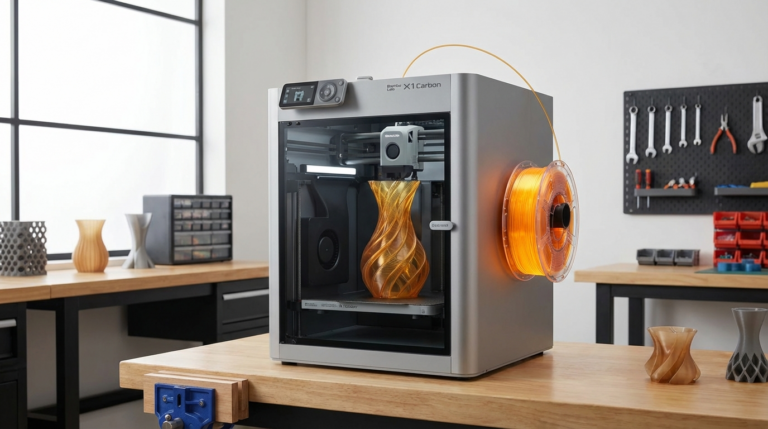
The A1 Mini hits the sweet spot of affordability, reliability, and print quality that classrooms need. At around $299, it’s budget-friendly enough to deploy multiple units. Auto bed leveling, vibration compensation, and flow calibration are all automatic. Print quality rivals machines twice its price. The optional enclosure adds safety for K-12 environments.
Pros: Exceptional reliability, fast printing, easy to use, great software ecosystem (Bambu Studio).
Cons: Smaller build volume (180×180×180mm), enclosure sold separately, requires Wi-Fi for some features.
Best for Elementary Schools: FlashForge Adventurer 5M Pro
FlashForge has long been a favorite in educational settings, and the Adventurer 5M Pro continues that tradition. Fully enclosed, auto-leveling, with a simple touchscreen interface that young students can navigate. The build volume is generous (220×220×220mm), and the quick-swap nozzle system means zero-tool maintenance.
Pros: Fully enclosed, extremely user-friendly, good build volume, strong educational support program.
Cons: Higher price point (~$450–500), print speed moderate compared to Bambu Lab.
Best Budget Option: Creality Ender-3 V3 SE
At around $199, the Ender-3 V3 SE is hard to beat on price. It includes auto bed leveling via CR Touch, a direct drive extruder, and Creality’s improved build quality over previous Ender models. The trade-off is an open frame design that’s less ideal for younger students but perfectly fine for high school and college labs.
Pros: Very affordable, huge community support, good print quality, massive ecosystem of upgrades and parts.
Cons: Open frame (no enclosure), some assembly required, less polished software experience.
Best for Engineering Programs: Prusa MK4S
For high school engineering classes, university programs, and makerspaces that want the educational gold standard, the Prusa MK4S delivers. It’s open source, incredibly well documented, and teaching students to use and maintain a Prusa is itself an educational experience. Print quality is outstanding, reliability is legendary, and Prusa’s customer support is among the best in the industry.
Pros: Open source (educational value), superb documentation, exceptional reliability, 5-year track record of excellence.
Cons: Expensive (~$799 assembled, $599 kit), open frame, slower than newer competitors.
Best for Print Farms: Bambu Lab P1S
If your school is serious about 3D printing and wants to run multiple printers simultaneously (for classes where every student prints a project), the P1S offers the best combination of speed, reliability, and enclosed design at its price point (~$599). Network connectivity via Bambu Handy means a teacher can monitor all printers from a tablet.
Pros: Fully enclosed, very fast, multi-material capable (with AMS), excellent network features.
Cons: Proprietary ecosystem, higher cost, overkill for basic projects.
Software for the Classroom
Design Software
- TinkerCAD (free): Browser-based, intuitive, perfect for beginners. Most elementary and middle school programs start here. Includes built-in lessons and classroom management tools.
- Fusion 360 (free for education): Industry-standard parametric CAD. Best for high school engineering and college programs. Autodesk offers free educational licenses.
- Onshape (free for education): Cloud-based parametric CAD that runs in a browser — no installation needed, which is huge for school IT departments that restrict software installs.
- BlocksCAD (free): Visual block-based CAD that teaches 3D modeling through programming concepts. Great bridge between coding and making.
Slicing Software
- Bambu Studio / OrcaSlicer: Best for Bambu Lab printers, though OrcaSlicer works with any printer
- PrusaSlicer: Excellent for Prusa printers and a solid choice for any FDM printer. Free and open source.
- Cura: The most widely used slicer with broad printer compatibility. Free.
Curriculum Integration Ideas
Here are proven ways to integrate 3D printing across subjects:
- Math: Print geometric solids, cross-sections, and mathematical surfaces. Calculate volume and surface area of 3D models before printing.
- Science: Print molecular models, anatomical models, topographic maps, simple machines, and lab equipment fixtures.
- History: Recreate historical artifacts, architectural models, and archaeological finds.
- Engineering: Design challenges (strongest bridge, tallest tower, best catapult arm) that require iterative design and testing.
- Art: Sculpture, jewelry design, architectural models, and mixed-media projects combining 3D printed elements with traditional materials.
- Business: Students design, prototype, and “sell” products — learning about manufacturing, cost analysis, and product development.
Managing a Classroom Print Queue
With 25+ students and one or two printers, queue management is critical:
- Set time limits per print. Maximum 2-hour prints during school hours. Longer prints run overnight or over weekends.
- Use a shared folder system. Students submit G-code files to a class folder. The teacher/tech coordinator queues them in order.
- Teach design efficiency. Smaller models print faster. Make “design for fast printing” part of the assignment criteria.
- Batch similar projects. If multiple students are printing the same general type of object, group them on one build plate to save time.
- Have a “print preview” step. Require students to show their sliced preview (estimated time, material use) before approving a print job.
Common Challenges and Solutions
Challenge: Students getting frustrated with failed prints.
Solution: Frame failure as part of the engineering process. Display a “Wall of Failed Prints” that celebrates learning from mistakes. Teach basic troubleshooting as part of the curriculum.
Challenge: Printer maintenance is too time-consuming.
Solution: Create a student “tech team” responsible for basic maintenance (bed cleaning, filament loading, first-layer checks). This teaches responsibility and technical skills.
Challenge: Keeping up with filament costs.
Solution: Apply for educational grants (many 3D printer manufacturers offer them). Buy filament in bulk during sales. Emphasize efficient design to reduce waste.
Challenge: IT department blocking required software.
Solution: Use browser-based tools (TinkerCAD, Onshape) that require no installation. Request exceptions for PrusaSlicer/Cura through proper IT channels.
Getting Started: A Practical Roadmap
- Start small. One printer, one class, one teacher. Don’t try to equip every classroom at once.
- Pick a reliable printer. The A1 Mini or FlashForge Adventurer for K-8, the Prusa MK4S for high school engineering.
- Start with TinkerCAD. It works for students of all ages and requires zero installation.
- Begin with a structured project. Name tags, keychains, or phone stands are simple enough to guarantee success while teaching the workflow.
- Build from there. As you and your students get comfortable, increase complexity, add more printers, and integrate across subjects.
3D printing in education isn’t a fad — it’s a fundamental shift in how we teach design, manufacturing, and creative problem-solving. The technology has matured to the point where classroom-ready printers are affordable, reliable, and genuinely easy to use. The only question left is when your school will get started.