3D Printer Stepper Driver Overheating: Causes, Symptoms, and Fixes
Your 3D printer suddenly starts skipping layers, shifting mid-print, or stuttering during movement — and when you touch the stepper motor drivers on the control board, they’re scorching hot. Overheating stepper drivers are one of the more insidious problems in 3D printing because they cause intermittent failures that are maddeningly hard to diagnose.
This guide covers everything you need to know about stepper driver overheating: why it happens, how to confirm the diagnosis, and exactly how to fix it.
What Are Stepper Drivers and Why Do They Overheat?
Stepper drivers are small integrated circuits on your printer’s mainboard that convert digital signals into the precise electrical pulses that drive your stepper motors. Each axis (X, Y, Z) and the extruder has its own driver chip. Common chips include the A4988, DRV8825, TMC2208, TMC2209, and TMC5160.
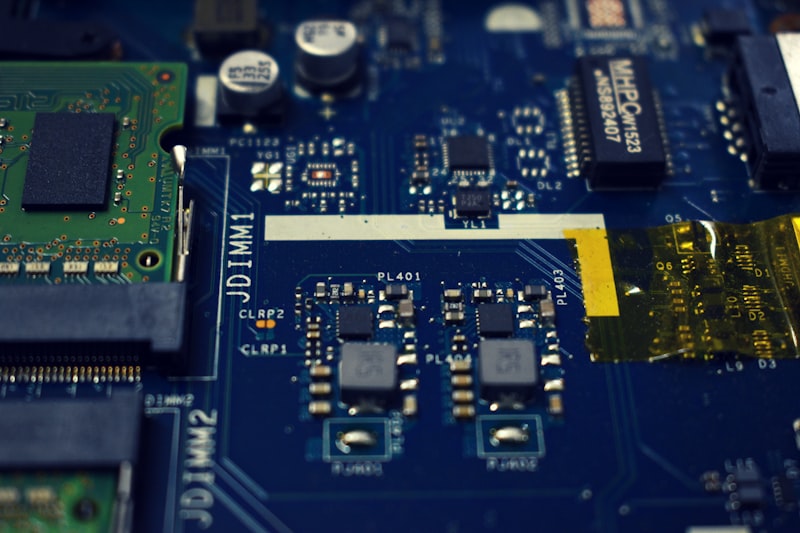
These drivers convert voltage to current, and that conversion generates heat. The more current flowing through the driver, the hotter it gets. When the temperature exceeds the chip’s thermal protection threshold (typically around 150°C for TMC chips), the driver temporarily shuts down to protect itself. That shutdown is what causes your print to skip, shift, or fail.
Symptoms of Overheating Stepper Drivers
Stepper driver overheating doesn’t always announce itself obviously. Here’s what to watch for:
- Layer shifting that starts partway through a print — the driver works fine when cool but shuts down after running for 20-60 minutes
- Intermittent motor stalling — one axis randomly stops responding, then works again after the printer sits idle
- Missing steps on one axis only — consistent shifting always in the same direction suggests one specific driver is the culprit
- Extruder clicking that worsens over time — if your extruder starts fine but begins skipping an hour into the print, the E driver may be overheating
- TMC “shutdown” errors in the terminal — if you’re running Klipper or monitoring via serial, you might see explicit thermal shutdown messages
How to Confirm It’s Overheating
The Touch Test
Power off your printer and carefully touch the stepper driver chips. If they’re too hot to keep your finger on for more than two seconds, they’re running above 70°C — warm but still within limits. If you can’t touch them at all, they’re dangerously hot and thermal throttling is almost certainly occurring.
Important: Touch only when the printer is off and you’re grounded. These are sensitive electronic components.
Infrared Thermometer
A better approach is using an IR thermometer or thermal camera. Point it at each driver during printing. Anything above 100°C on the chip surface is concerning. Above 120°C is an immediate problem.
Monitor Driver Temperature via Firmware
If you’re using TMC drivers with Klipper or Marlin, you can query driver temperatures directly. In Klipper, use the DUMP_TMC command. In Marlin, enable TMC_DEBUG and use M122 to read driver status including internal temperature flags.
Root Causes of Stepper Driver Overheating
1. Vref / Current Too High
The most common cause by far. Every stepper driver has a reference voltage (Vref) that sets the maximum current delivered to the motor. If Vref is set too high, the driver pushes more current than necessary, generating excess heat.
Stock boards often ship with Vref set conservatively, but if someone adjusted it (or if you swapped drivers), the setting might be wrong. Check your motor’s rated current and set Vref accordingly — typically at 70-85% of the motor’s rated current.
2. Poor Airflow Over the Mainboard
Many printers enclose the mainboard in a case with minimal ventilation. If the cooling fan is clogged with dust, disconnected, or undersized, heat builds up. Some budget printers don’t include a mainboard fan at all.
3. Missing or Fallen Heatsinks
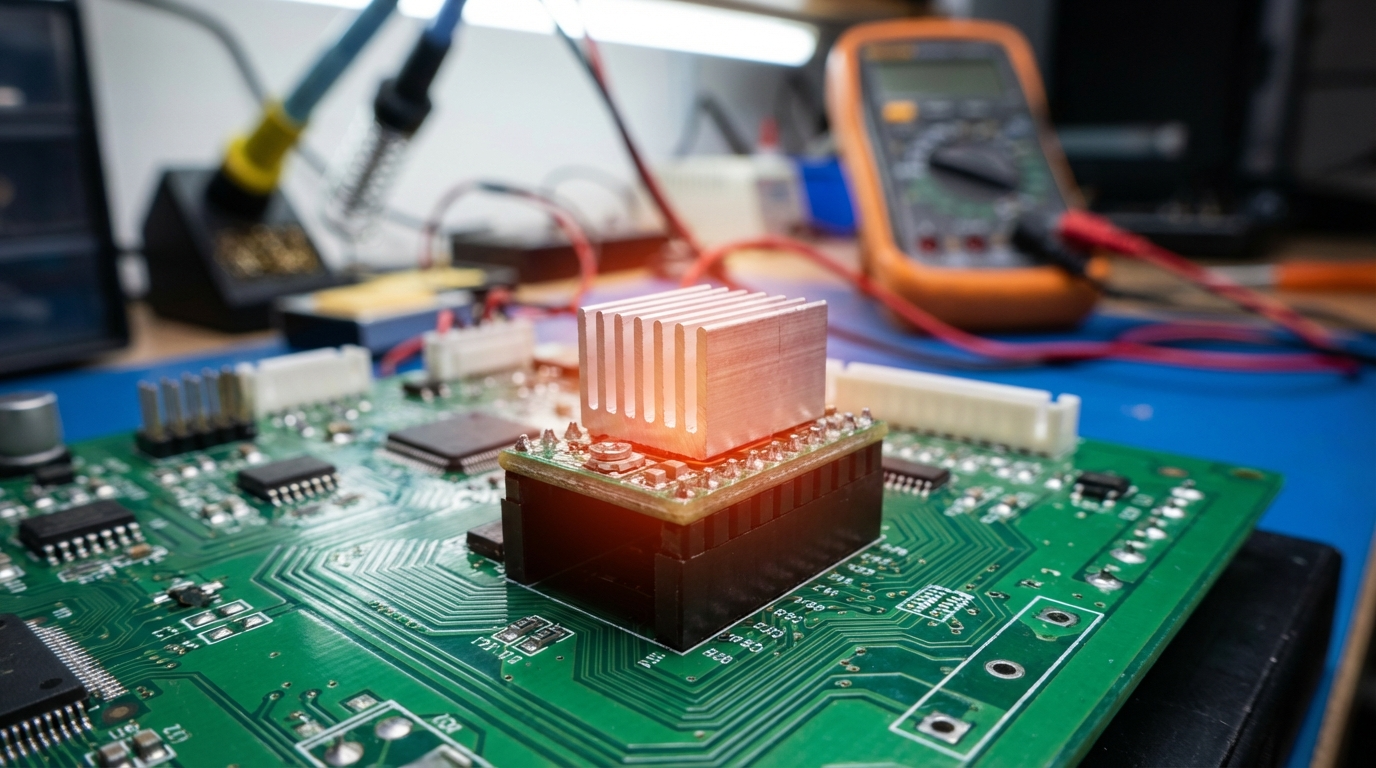
Most mainboards come with small aluminum heatsinks glued onto the stepper drivers. These heatsinks significantly improve heat dissipation. Over time, the thermal adhesive weakens and heatsinks fall off — especially if the printer vibrates a lot.
4. High Ambient Temperature
Printing ABS in an enclosure raises the ambient temperature around everything, including the mainboard. If your electronics are inside or near the enclosure, they’re fighting higher baseline temperatures.
5. Mechanical Resistance
If an axis has extra friction — from misaligned rails, dry bearings, bent lead screws, or a binding carriage — the motor draws more current to overcome the resistance. More current means more heat in the driver.
6. Continuous High-Speed Printing
High-speed printing keeps the motors constantly active at higher RPMs, generating more heat in both the motors and drivers. This is especially relevant with the new generation of speed-focused printers like the Bambu Lab and Creality K1 series.
How to Fix Overheating Stepper Drivers
Fix 1: Lower Motor Current (Vref)
This is the first thing to try. Most stepper motors in 3D printers are rated for more current than they actually need for normal operation.
For a typical NEMA 17 motor rated at 1.5A:
- X/Y axis: 0.8–1.0A is usually sufficient
- Z axis: 0.6–0.8A (Z moves slowly and carries less dynamic load)
- Extruder: 0.6–0.9A depending on the extruder design
For TMC2209 drivers, you can set current via firmware (Klipper’s run_current parameter or Marlin’s TMC_CURRENT). For older A4988/DRV8825 drivers, adjust the tiny potentiometer on the driver board and measure Vref with a multimeter.
Fix 2: Add or Replace Heatsinks
Buy a set of aluminum heatsinks designed for stepper drivers (8mm × 8mm or 9mm × 9mm). Clean the old thermal adhesive off the driver chip, apply fresh thermal tape, and press the heatsink firmly in place. This alone can drop temperatures by 15–25°C.
Fix 3: Improve Mainboard Cooling
Add a dedicated fan blowing directly over the mainboard. A 40mm or 50mm fan running at moderate speed is usually enough. If your mainboard enclosure doesn’t have ventilation holes, drill or cut some. Hot air needs a way out.
Fix 4: Relocate Electronics Outside the Enclosure
If you’re running an enclosed printer for ABS/ASA, consider moving the electronics outside the heated chamber. Many Voron builders route cables through the bottom panel and mount the mainboard in a separate ventilated compartment.
Fix 5: Upgrade to Better Drivers
If you’re still running A4988 or DRV8825 drivers, upgrading to TMC2209 or TMC5160 drivers makes a massive difference. TMC drivers use more efficient current regulation (StealthChop/SpreadCycle) that generates significantly less heat at the same current levels. TMC5160 drivers are especially good for high-current applications because they can handle up to 3A RMS with proper cooling.
Fix 6: Enable StealthChop or SpreadCycle Appropriately
TMC drivers offer two operating modes. StealthChop is quieter but less efficient at high speeds. SpreadCycle is louder but handles high-speed movement better with less heat generation. Configure your firmware to use StealthChop for Z and E (which move slowly) and SpreadCycle for X and Y (which move fast).
Fix 7: Reduce Mechanical Friction
Clean and lubricate your linear rails or rods. Check that your belts aren’t overtightened. Verify lead screws are straight and bearings aren’t binding. Reducing mechanical resistance lowers the current draw and therefore the heat.
Prevention: Keeping Drivers Cool Long-Term
- Clean dust from your mainboard enclosure monthly. Dust acts as insulation and clogs fan blades.
- Check heatsinks periodically. Vibration loosens thermal adhesive over time.
- Monitor during long prints. If you notice thermal warnings, address them immediately rather than risking print failures.
- Don’t overtighten belts. Proper tension is firm but not guitar-string tight. Overtightened belts increase motor load dramatically.
- Use appropriate current settings. More current doesn’t mean better prints — it means more heat and more wear on everything.
Stepper Driver Thermal Specs Reference
Here’s a quick reference for common driver chips:
- A4988: Thermal shutdown at 165°C. No built-in temperature monitoring. Gets hot fast at high currents.
- DRV8825: Thermal shutdown at 150°C. Slightly better heat management than A4988 but still runs hot.
- TMC2208: Thermal shutdown at 150°C. StealthChop reduces heat significantly. Internal temperature readable via UART.
- TMC2209: Thermal shutdown at 150°C. StallGuard and SpreadCycle modes. Best value for most printers. Temperature monitoring via UART.
- TMC5160: External MOSFETs allow much higher current with less on-chip heat. Recommended for large printers or high-current motors.
Conclusion
Stepper driver overheating is almost always caused by too much current or too little cooling. Start by checking your Vref/current settings — they should be just high enough for reliable operation, not maxed out. Add heatsinks, improve airflow, and consider upgrading to TMC drivers if you’re still running older chips.
A cool-running driver is a reliable driver. Spend thirty minutes getting your thermal management right, and you’ll eliminate an entire category of frustrating, intermittent print failures.