Best Slicer Software for 3D Printing in 2026: Cura vs PrusaSlicer vs OrcaSlicer
Choosing the right slicer software can make or break your 3D printing experience. The slicer converts your 3D model into the layer-by-layer instructions (G-code) that your printer follows, and the quality of that conversion directly affects print quality, speed, and reliability.
In 2026, three slicers dominate the FDM landscape: Cura, PrusaSlicer, and OrcaSlicer. Each has distinct strengths, workflows, and target audiences. This comparison helps you pick the one that fits your printer and experience level.
The Big Three: Overview
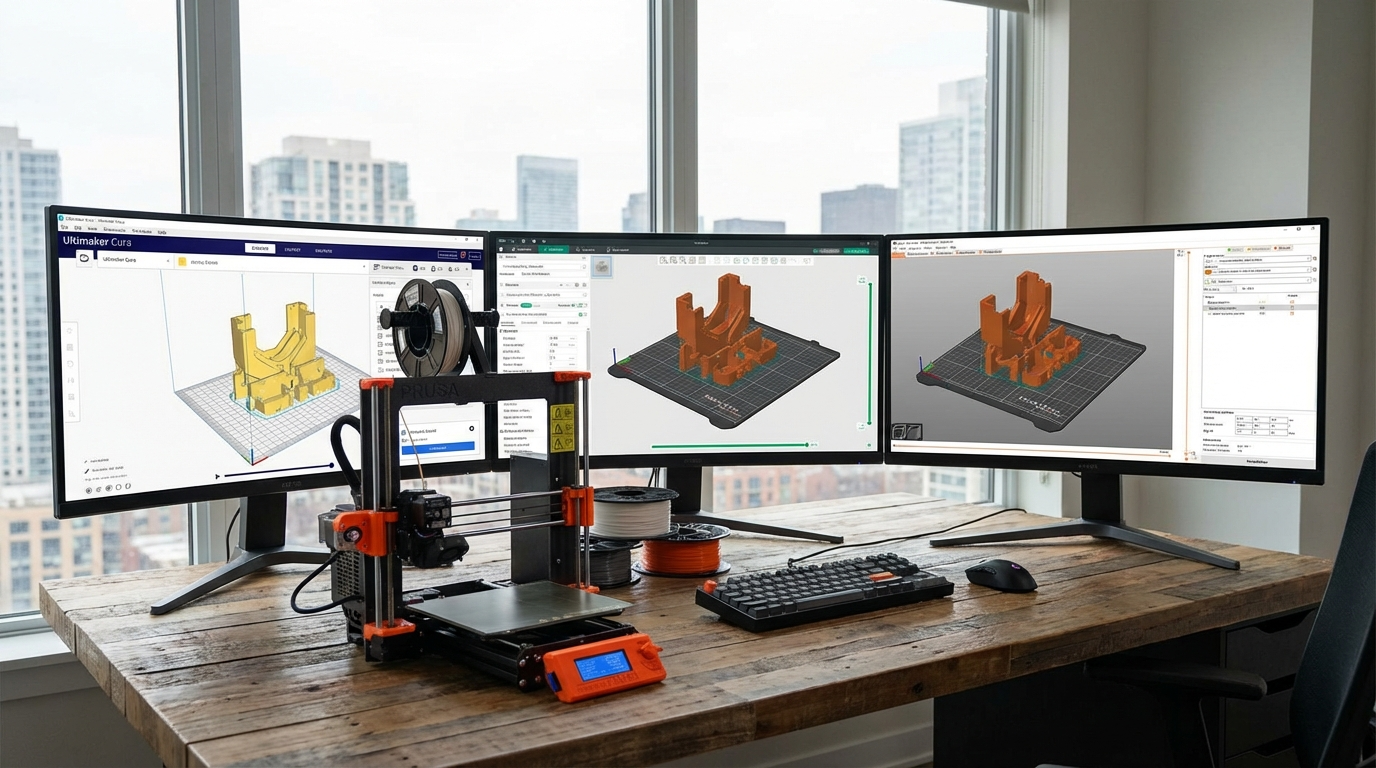
UltiMaker Cura
Cura has been the default recommendation for beginners since 2015. Developed by UltiMaker (formerly Ultimaker), it’s free, open-source, and has the largest library of built-in printer profiles. If you just bought an Ender 3, Cura almost certainly has your printer pre-configured.
Best for: Beginners, Creality printer owners, users who want maximum printer compatibility
PrusaSlicer
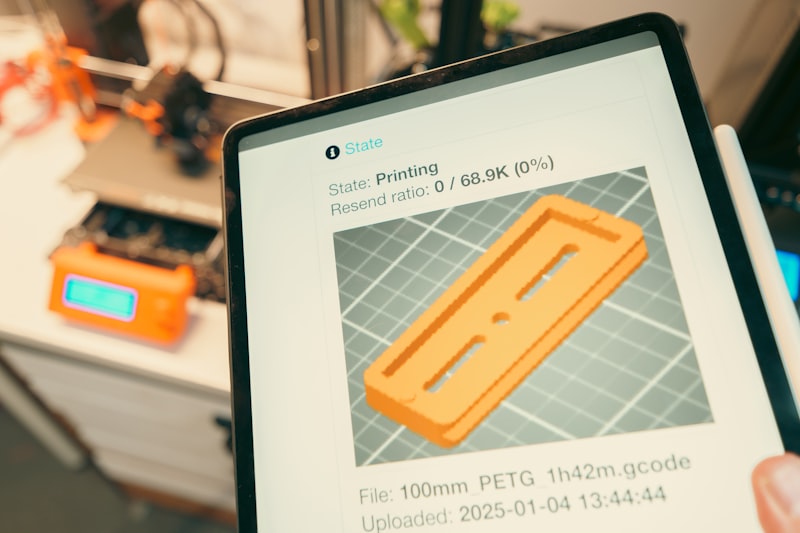
PrusaSlicer is developed by Prusa Research and forked from the original Slic3r project. It’s also free and open-source. While it’s optimized for Prusa printers, it works with any FDM printer and has become the go-to choice for intermediate to advanced users who want fine control over their print parameters.
Best for: Prusa owners, intermediate users, multi-material printing (MMU)
OrcaSlicer
OrcaSlicer is the newest contender, forked from Bambu Studio (which itself forked from PrusaSlicer). It has rapidly gained popularity thanks to its built-in calibration tools, support for high-speed printers, and an active community adding features at a pace that neither Cura nor PrusaSlicer can match.
Best for: Bambu Lab owners, speed-focused printers, users who want built-in calibration
Feature Comparison
Printer Profiles and Setup
Cura leads with the largest profile database. Hundreds of printers from dozens of manufacturers are pre-configured out of the box. Select your printer model, load a filament preset, and you’re printing in minutes.
PrusaSlicer has solid profile support for Prusa printers and many popular third-party machines. The profile system uses inheritance, which makes it easy to create variants (e.g., a “fast draft” profile that inherits from your standard profile but with thicker layers).
OrcaSlicer includes profiles for Bambu Lab, Voron, Creality, and many other printers. Its profile management is the most modern of the three, with easy import/export and community-shared profiles. It also supports printer-specific features like Bambu Lab’s AMS and Creality’s Nebula Pad.
User Interface
Cura’s interface is the most beginner-friendly. Settings are hidden by default, and you progressively reveal more as you advance from “Basic” to “Expert” mode. The marketplace lets you install plugins directly. On the downside, Cura can feel sluggish with complex models due to its Electron-based components.
PrusaSlicer’s UI is functional but not pretty. It exposes more settings by default, which can overwhelm newcomers. However, the organization is logical, and once you learn the layout, it’s very efficient. The 3D view is fast and responsive even with large models.
OrcaSlicer’s interface is clean and modern, borrowing the best layout ideas from both PrusaSlicer and Bambu Studio. It feels the fastest of the three and includes quality-of-life features like a built-in G-code sender, network printing, and live camera monitoring for compatible printers.
Slicing Speed
This matters when you’re iterating on settings or slicing large, complex models:
- OrcaSlicer: Fastest. Benefits from the latest PrusaSlicer engine optimizations plus Bambu’s improvements.
- PrusaSlicer: Fast. The Arachne perimeter generator is efficient and produces excellent results.
- Cura: Slowest of the three, especially on complex models. Cura 6.x improved significantly over 5.x, but it’s still noticeably slower than the other two on large files.
Print Quality Features
Arachne (Variable Width Perimeters): Available in all three slicers now. This feature adjusts perimeter width to fill thin walls properly, eliminating gaps that used to plague thin-wall prints.
Tree Supports: Cura pioneered tree supports and still has the most mature implementation. PrusaSlicer and OrcaSlicer both support tree supports now, with OrcaSlicer’s implementation being slightly more configurable.
Ironing: All three support ironing (running the hot nozzle over the top surface to smooth it). Cura and OrcaSlicer offer the most granular control over ironing parameters.
Adaptive Layer Height: PrusaSlicer and OrcaSlicer handle this better than Cura. They automatically vary layer height based on the model’s geometry — thinner layers for detailed areas, thicker for flat sections.
Calibration Tools
This is where OrcaSlicer pulls far ahead. Built-in calibration tools include:
- Flow rate calibration
- Pressure advance / linear advance tuning
- Temperature tower generation
- Retraction test
- Max volumetric flow test
PrusaSlicer has basic calibration support but nothing comparable to OrcaSlicer’s integrated suite. Cura requires plugins or external tools for calibration.
Multi-Material Support
PrusaSlicer has the best multi-material support thanks to years of development alongside the Prusa MMU. Wipe tower configuration, filament change management, and per-object material assignment are all mature features.
OrcaSlicer has excellent AMS support for Bambu Lab printers and growing support for other multi-material systems. Its filament flushing optimization can save significant material during color changes.
Cura supports multi-extruder setups but feels less polished than the other two for multi-material workflows.
Network and Remote Printing
OrcaSlicer: Direct network sending to Bambu Lab printers, OctoPrint, Moonraker (Klipper), and other network-connected printers. Live camera feed integration.
PrusaSlicer: Native support for PrusaLink and PrusaConnect. OctoPrint integration. Prusa Connect provides cloud-based remote access.
Cura: OctoPrint plugin, UltiMaker Digital Factory for UltiMaker printers. Third-party plugins extend connectivity.
Performance Benchmarks
I sliced the same model (a Benchy) with identical settings across all three slicers to compare output:
- Slicing time: OrcaSlicer 3.2s, PrusaSlicer 4.1s, Cura 7.8s
- File size: Nearly identical G-code output (within 2%)
- Estimated print time: OrcaSlicer and PrusaSlicer within 1 minute of each other; Cura estimated 3 minutes longer due to slightly different pathing
On a more complex model (a full-plate arrangement of miniatures), the differences were more pronounced. OrcaSlicer sliced in 18 seconds, PrusaSlicer in 24 seconds, and Cura took 52 seconds.
Which Slicer Should You Use?
Choose Cura If:
- You’re brand new to 3D printing and want the easiest setup
- You have an older or unusual printer that might not have profiles elsewhere
- You rely on specific Cura plugins (like the Settings Guide or Mesh Tools)
- You’re using an UltiMaker printer
Choose PrusaSlicer If:
- You own a Prusa printer (especially with MMU)
- You want fine-grained control without a cluttered interface
- You print with multiple materials regularly
- You value stable, well-tested releases over bleeding-edge features
Choose OrcaSlicer If:
- You own a Bambu Lab printer
- You want built-in calibration tools
- You’re pushing speed and need optimized high-speed profiles
- You want the most active development with frequent new features
- You run Klipper and want deep integration with Moonraker
Can You Use Multiple Slicers?
Absolutely, and many experienced users do. There’s no reason to commit to a single slicer. You might use OrcaSlicer for daily printing and calibration, switch to PrusaSlicer for complex multi-material jobs, and keep Cura installed for that one printer with a unique profile.
All three are free. Install all of them, spend a weekend printing the same model from each, and see which one clicks with your workflow.
The Verdict
In 2026, OrcaSlicer has the momentum. It’s the fastest-evolving slicer with the most modern feature set, and its calibration tools alone justify installing it. PrusaSlicer remains the most reliable and polished option for users who prioritize stability. Cura is still the easiest entry point for absolute beginners, but it’s fallen behind in features and performance.
If you’re starting fresh today with a new printer, I’d recommend OrcaSlicer as your primary slicer with PrusaSlicer as your backup. That combination covers virtually every use case in FDM printing.