TPU Print Speed Settings: Bowden vs Direct Drive Complete Guide
Why TPU Speed Settings Are Different From Everything Else
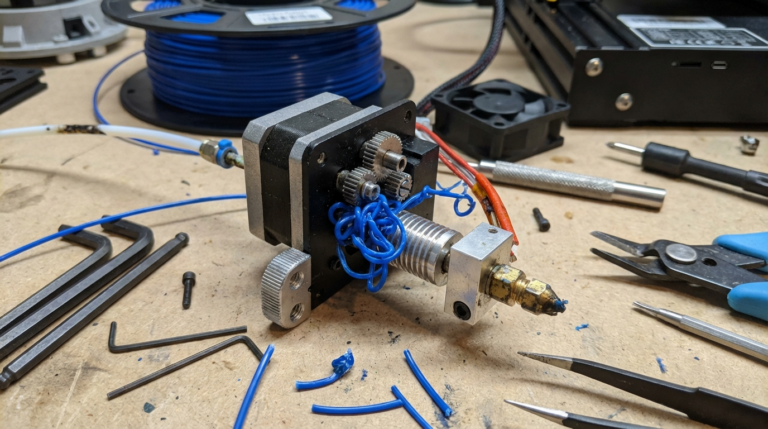
If you’ve ever tried to print TPU at the same speed as PLA, you already know the result: tangled filament, jammed extruder, and a ruined print. Flexible filaments play by completely different rules, and the most critical rule is speed. Get it wrong and you’ll spend more time unclogging your hotend than actually printing.
I’ve been printing with TPU for over three years across both Bowden and direct drive setups. The speed settings that work are very specific — and very different depending on which extruder type you have. Here’s exactly what you need to know.
The Core Problem: Why TPU Hates Speed
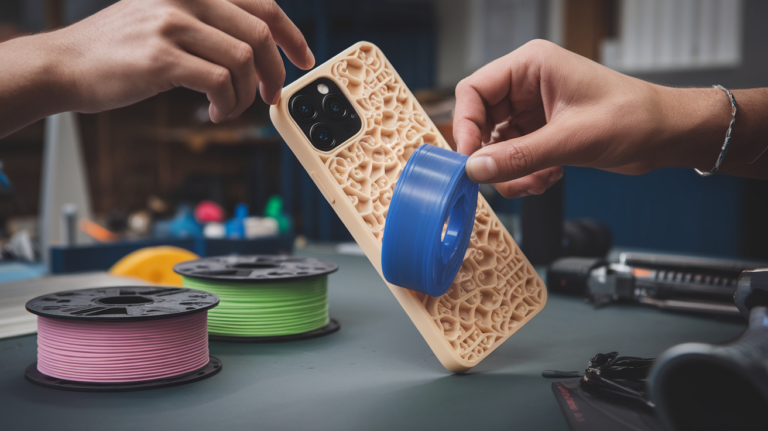
TPU (Thermoplastic Polyurethane) is flexible. That flexibility is the whole point — you want bendy phone cases, squishy wheels, and grippy pads. But that same bendiness creates a problem inside your extruder.
When the extruder gear pushes filament toward the nozzle, rigid PLA transmits that force directly — like pushing a stick through a tube. TPU, however, compresses and bends under pressure. Push too hard (too fast) and the filament buckles, wraps around the gear, or compresses into a plug that jams the entire system.
The faster you try to extrude, the more back-pressure builds up in the nozzle, and the more the flexible filament wants to buckle instead of flowing. This is why speed control is the single most important factor for successful TPU printing.
Bowden vs. Direct Drive: A Massive Difference
This is where most guides fail — they give generic TPU speeds without specifying the extruder type. The difference between Bowden and direct drive TPU printing is enormous.
Bowden Tube Extruders
Bowden setups (like the stock Ender 3, CR-10, and Anycubic Kobra) have the extruder motor mounted on the frame, with a long PTFE tube carrying filament to the hotend. This is the worst configuration for TPU because the flexible filament has the entire length of the Bowden tube to compress, stretch, and buckle in.
Recommended speeds for Bowden + TPU:
Print speed (walls): 15-20 mm/s
Infill speed: 20-25 mm/s
Travel speed: 80-100 mm/s (NOT higher — fast travel moves can yank the soft filament)
First layer: 10-15 mm/s
Retraction speed: 20-25 mm/s
Retraction distance: 3-6mm (yes, this large — the Bowden tube compliance eats the first few mm)
These speeds feel painfully slow, and they are. A print that takes 2 hours in PLA might take 6-8 hours in TPU on a Bowden machine. There’s no shortcut — pushing beyond 25 mm/s on a Bowden setup almost always leads to jams with standard 95A TPU.
Critical Bowden tip: Make sure your Bowden tube is seated firmly against the nozzle with zero gap. Any gap between the PTFE tube and the hotend creates a pocket where flexible filament pools and jams. Use a Bowden tube fitting with a collet clip to prevent the tube from backing out.
Direct Drive Extruders
Direct drive setups (like the Prusa MK3S+, Ender 3 S1, or any printer with the extruder mounted on the print head) are dramatically better for TPU. The filament path from gear to nozzle is extremely short — typically 20-30mm versus 400-600mm in a Bowden setup. This means far less room for the flexible filament to misbehave.
Recommended speeds for direct drive + TPU:
Print speed (walls): 25-35 mm/s
Infill speed: 35-45 mm/s
Travel speed: 120-150 mm/s
First layer: 15-20 mm/s
Retraction speed: 25-30 mm/s
Retraction distance: 0.5-2mm (much shorter — less dead space to compensate for)
With a well-tuned direct drive extruder and a good hotend, you can push standard TPU up to 40-45 mm/s for walls. Some users report success at 50 mm/s with softer TPU grades on machines like the Prusa MK4 or Bambu Lab printers, but this depends heavily on the specific filament and extruder design.
TPU Hardness and Speed: The Shore A Factor
Not all TPU is created equal. TPU hardness is measured on the Shore A scale, and it directly affects how fast you can print.
95A (standard TPU — NinjaFlex, Overture TPU, SainSmart TPU): This is the most common hardness. Firm enough to handle at reasonable speeds but flexible enough for most applications. Use the speed settings listed above.
85A (soft TPU — NinjaFlex Cheetah, FilaFlex): Noticeably softer and harder to print. Reduce all speeds by 30-40% compared to 95A settings. On Bowden setups, 85A TPU is extremely challenging — many experienced printers consider it direct-drive-only territory.
70A (very soft — NinjaFlex edge cases): Extremely difficult to print. Maximum 10-15 mm/s even on direct drive. Bowden is essentially impossible. Most hobbyist printers avoid this hardness range.
98A+ (semi-flexible — PolyFlex, some “TPU” labeled filaments): These are borderline rigid. You can print them at near-PLA speeds (40-60 mm/s) on both Bowden and direct drive. They’re easier but less flexible.
Temperature and Speed Are Connected
TPU speed settings can’t be set in isolation from temperature. Higher speeds require higher temperatures because the filament has less time in the melt zone. If you’re getting under-extrusion at higher speeds, try increasing temperature before reducing speed.
For 15-25 mm/s: 220-230°C works for most TPU brands.
For 25-35 mm/s: 230-240°C provides better flow at moderate speeds.
For 35-45 mm/s: 240-250°C may be needed for consistent extrusion.
Start with the manufacturer’s recommended temperature and increase in 5°C increments if you see signs of under-extrusion (gaps in lines, rough texture, clicking extruder).
Bed temperature for TPU is typically 40-60°C. Some printers work fine with an unheated bed and blue tape. TPU adheres to most surfaces easily — adhesion is rarely a problem.
Essential Slicer Settings Beyond Speed
Speed is the headline setting, but several other slicer adjustments are critical for reliable TPU printing:
Retraction: This is the second most important setting. Too much retraction and TPU jams. Too little and you get extreme stringing. Start with minimal retraction (1mm direct drive, 4mm Bowden) at slow speed (20 mm/s). Many experienced TPU printers disable retraction entirely and deal with stringing through post-processing.
Combing mode: Enable “Not in Skin” or “Within Infill” in Cura. This routes travel moves through the interior of the print, reducing the need for retraction. It adds some travel time but dramatically reduces stringing and jam risk.
Flow rate: TPU often benefits from a slight flow increase — 103-108% in your slicer. The flexible nature means it compresses slightly in the extruder, so a small flow boost compensates for this and produces more consistent lines.
Cooling: Unlike PLA, TPU doesn’t need aggressive cooling. Run your part fan at 30-50% (not 100%). Excessive cooling can cause layer adhesion issues and make the TPU brittle. Some printers do fine with 0% fan speed for TPU.
Z-hop: Enable Z-hop on retraction (0.2-0.4mm). This lifts the nozzle during travel moves, preventing it from dragging through soft, still-warm TPU and distorting the print surface.
Acceleration and Jerk: The Settings People Forget
Even if your top speed is correct, high acceleration can cause TPU problems. When the print head rapidly changes speed or direction, the flexible filament compresses and stretches inside the extruder, leading to inconsistent extrusion.
Recommended acceleration for TPU: 500-800 mm/s² (compared to 1000-3000 for PLA). Lower acceleration means the print head speeds up and slows down more gently, giving the flexible filament time to respond.
Jerk settings: Reduce to 5-8 mm/s (compared to 10-20 for PLA). This prevents sudden direction changes that can cause flexible filament to buckle at the extruder gear.
Troubleshooting Speed-Related TPU Issues
Filament wrapping around the extruder gear: You’re printing too fast. Reduce speed by 25% and check that there’s no gap between the gear and the PTFE liner/hotend entry. Some extruders benefit from a filament guide tube insert right at the gear.
Under-extrusion (gaps in lines): Either too fast, too cold, or both. Increase temperature by 5°C first. If still present, reduce speed.
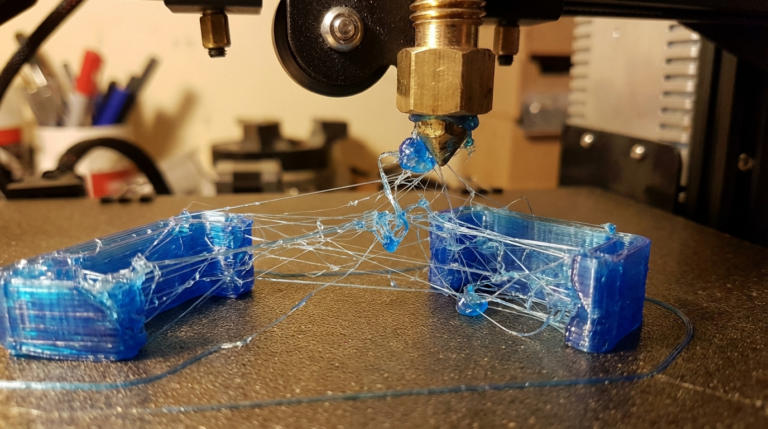
Extreme stringing: This is normal with TPU. Reduce it with: combing mode on, minimal retraction, lower temperature (if you can without under-extruding), and post-process with a heat gun on low setting.
Clicking extruder: The extruder gear is skipping because back-pressure exceeds its grip strength. Reduce speed, increase temperature, or check for a partial clog.
Blobbing on corners: Pressure buildup in the nozzle releases when the print head slows for corners. Reduce acceleration, enable linear advance (Marlin) or pressure advance (Klipper) if your firmware supports it.
My Proven Speed Profiles
Here are copy-paste-ready speed profiles for common printer and TPU combinations:
Ender 3 (stock Bowden) + 95A TPU: Walls 18, infill 22, travel 80, retraction 4mm at 25 mm/s, temp 225°C, acceleration 500.
Ender 3 S1 (direct drive) + 95A TPU: Walls 30, infill 40, travel 120, retraction 1mm at 25 mm/s, temp 230°C, acceleration 700.
Prusa MK3S+ (direct drive) + 95A TPU: Walls 25, infill 35, travel 120, retraction 0.8mm at 20 mm/s, temp 228°C, acceleration 600.
Bambu Lab P1S (direct drive) + 95A TPU: Walls 35, infill 50, travel 150, retraction 0.5mm at 30 mm/s, temp 230°C. The enclosed chamber helps maintain consistent temperatures.
The Bottom Line on TPU Speed
Printing TPU is a patience game. The speeds feel absurdly slow compared to PLA, and there’s no trick that lets you print it fast without consequences. Direct drive extruders give you roughly twice the speed ceiling of Bowden setups, and harder TPU grades allow faster printing than softer ones.
Start with the conservative speeds in this guide, get a successful print, then increase by 5 mm/s increments until you find your machine’s limit. It’s much faster to start slow and speed up than to start fast, jam your extruder, and spend an hour cleaning it out.