OctoPrint Smart Plug Power Control: PSU Control, Tasmota, and Auto Power Off After a Print
What OctoPrint smart plug power control actually does
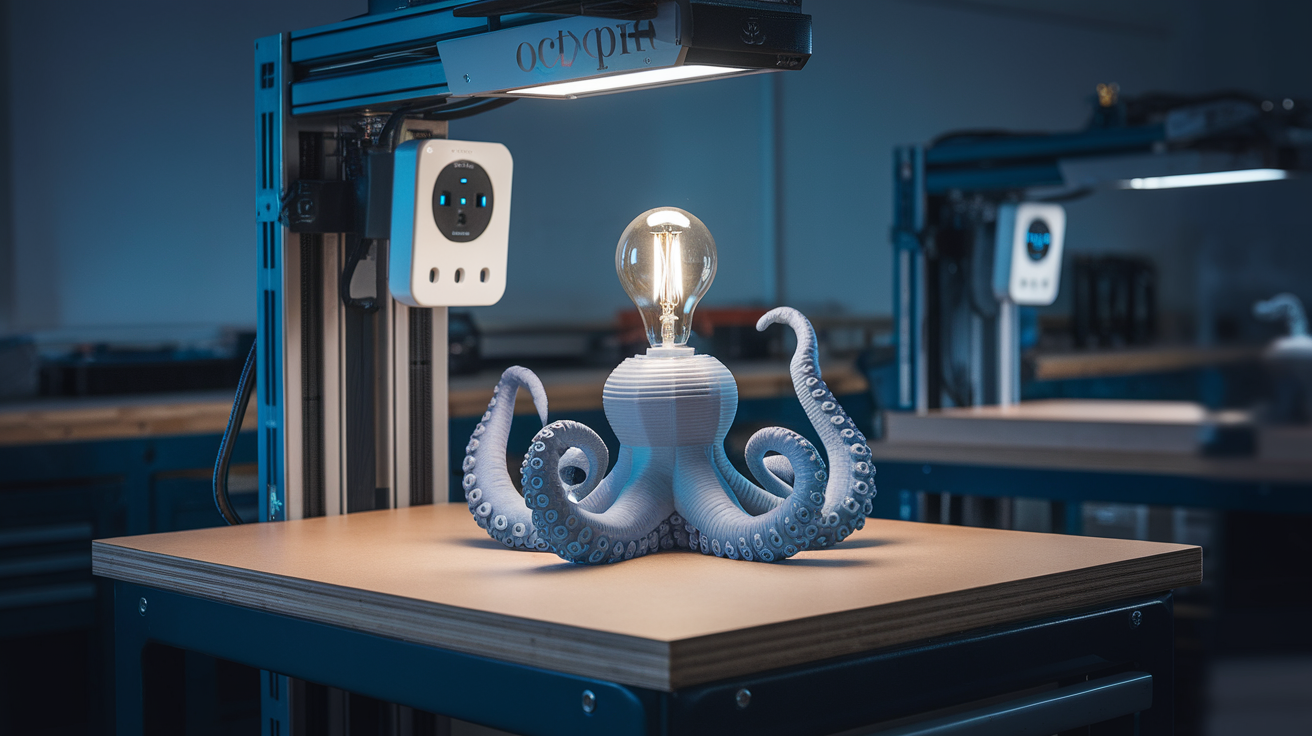
OctoPrint smart plug power control is the workflow that lets OctoPrint turn your printer’s power supply on at the start of a print and off when the print is done — without you walking to the printer to flip a physical switch. The setup leans on three things: a Wi-Fi smart plug between the wall outlet and your printer, an OctoPrint plugin (PSU Control or one of its companion plugins), and a printer that boots cleanly from cold power. When all three line up, your print queue becomes truly remote: schedule a print from your phone, the printer powers up, the print runs, the printer powers down. Cumulative effect across a year of printing: meaningful electricity savings, less wear on always-on PSUs, and a cleaner printer-room workflow.
This is not the same as remote print monitoring. Monitoring is camera streams and pause buttons. Power control is the layer below that — the hardware on/off — and it requires a slightly different mental model. You are not just remote-controlling the printer; you are remote-controlling the wall outlet that feeds the printer. Everything else flows from that distinction.

Why you would actually want this
The most common driver is auto-power-off after a print finishes. Without it, the PSU sits running at idle for hours after the print finishes if nobody walks over. The PSU draws 5-15 watts at idle, the heated bed bleeds residual heat, and the cooling fans keep spinning at low RPM. None of this is dangerous; it is just wasteful. A smart plug closes the loop so the printer truly stops when the print stops.
The second driver is remote startup. You leave the house, decide to print something while you are out, send the gcode through OctoPrint, and the smart plug brings the PSU online for the print. This pairs naturally with the OctoPrint notification system covered in our OctoPrint notifications guide — start the print remotely, get the finish alert with a snapshot, no further action required.
The third driver is safety. A printer that powers off when an OctoPrint thermal runaway protection triggers is fundamentally safer than one that keeps running until you intervene. The plug provides a hardware-level cutoff that does not depend on the firmware staying responsive.
The plugin choice — PSU Control is the foundation
The OctoPrint plugin called PSU Control is the abstraction layer. It does not talk to any specific smart plug — it provides an on/off interface in the OctoPrint UI and exposes hooks for events (print started, print done, idle timeout). You then install a companion plugin that knows how to actually talk to your specific brand of smart plug, and PSU Control routes the on/off commands through it.
The companions worth knowing about are: PSU Control – Tasmota for any plug flashed with Tasmota firmware (the most reliable option if you do not mind flashing); PSU Control – TPLink for Kasa-branded plugs; PSU Control – Shelly for Shelly Plug devices; and PSU Control – Home Assistant for users who already run Home Assistant and want OctoPrint to route commands through it. Pick the one that matches your hardware. If you do not have hardware yet, Tasmota-flashable plugs (Sonoff S31, Athom Smart Plug) are the most flexible because they work locally without cloud dependence.
Step 1 — wire the smart plug correctly
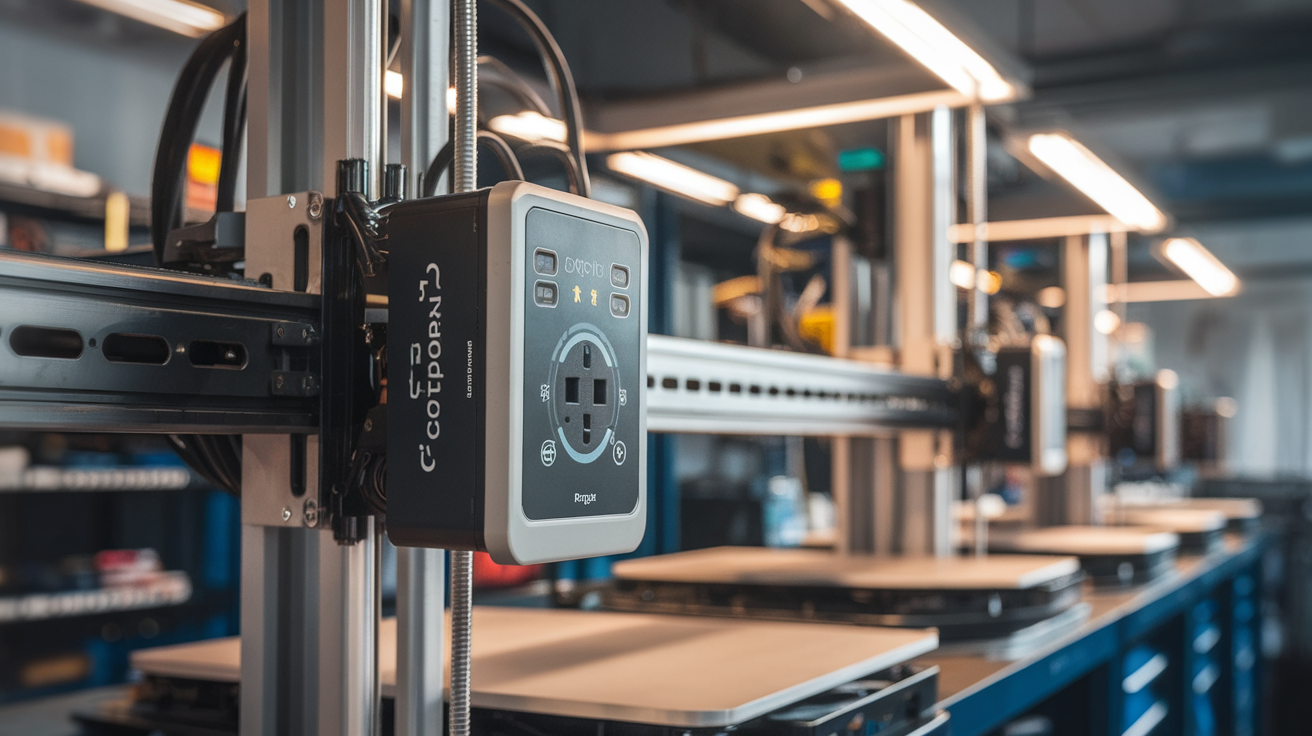
This is a wall outlet wiring decision, not a software decision. The smart plug goes between the wall outlet and the printer’s PSU input. Do not run any other device through it — no Pi, no webcam, no LED light strip. The smart plug controls printer power and only printer power. If you also want to control your Pi, use a separate smart plug or use the Pi’s GPIO with a relay; do not power the Pi from the same plug because turning off the plug also turns off the Pi mid-print.
Verify the smart plug’s amperage rating exceeds the PSU’s startup inrush. Most printer PSUs draw 8-12 amps at 120V or 4-6 amps at 240V steady-state, but inrush at power-on can spike to 20+ amps for milliseconds. A 10A-rated smart plug is the practical minimum; 15A is safer. Cheap unbranded plugs sometimes fail under inrush after a few months — this is the most common silent failure mode in OctoPrint smart plug power control setups.

Step 2 — install PSU Control and a companion
From OctoPrint’s web interface, open Settings → Plugin Manager → Get More. Search for PSU Control, install it, and let OctoPrint restart. Then search for and install the companion plugin matching your hardware (PSU Control – Tasmota, etc.). After the second restart, both plugins appear in the Settings sidebar.
Open PSU Control’s settings and select the sub-plugin you installed under “Switching method.” Enter the smart plug’s local IP address, MAC, or device ID depending on which method you picked. Tasmota and Shelly use IP; Kasa uses device discovery. Click Test, watch the plug click — you should hear or see the relay engage. If it does not engage, the IP is wrong, the plug is on a different network segment, or the firmware version is incompatible.
Step 3 — choose the events that toggle power
PSU Control exposes a list of events that can switch the plug. The standard configuration enables: turn on PSU when print starts, turn off PSU after print finishes, turn off PSU on idle timeout (default 15 minutes after print or 60 minutes of no activity). The idle timeout is the most important value for energy savings — set it long enough that you do not interrupt yourself if you walk away briefly, short enough that the printer does not idle for hours.
Avoid enabling “turn off PSU on disconnect” unless you understand the implications. A momentary serial disconnect (USB cable jiggle, Pi USB port glitch) will trigger an immediate power-off mid-print. The print will end. Some users want this as a safety feature; most do not.
Step 4 — handle the cold-start gcode timing
When the smart plug closes and the PSU powers on, your printer starts a cold boot. The mainboard initializes, the firmware loads, the steppers energize, and the printer is ready to receive commands. This boot takes 5-30 seconds depending on the printer. OctoPrint’s serial connection re-establishes during this window. If your start gcode begins before the connection is fully back, the early commands are lost.
The fix is a startup delay. PSU Control has a setting called “Pre-flight delay” or similar that holds OctoPrint’s command sending for N seconds after the PSU turns on. Set this to 10 seconds for most printers, 15-20 for slower-booting boards (BTT Octopus is on the slow end). The cost of an extra 10 seconds at print start is invisible compared to the cost of a print that fails because the homing command was sent before the printer answered.
What can go wrong and how to detect it
Smart plug failures fall into three categories. Hard failure: the relay welds in the on or off position and the plug becomes a dumb passthrough or a dead outlet. You discover this when the next on/off command does nothing. Replace the plug. Soft failure: the plug works but its Wi-Fi drops and PSU Control loses contact. Reboot the plug, check your Wi-Fi access point, and check whether the plug is on a guest VLAN that blocks local control. Firmware failure: a Tasmota or Shelly firmware update changed the API and the plugin can no longer talk to it. Roll back the firmware or update the plugin.
Set up notifications for plug failures. The PSU Control plugin can fire OctoPrint events when a switching attempt fails — route those events to the same Telegram or Discord channel you use for print notifications. A failed plug is something you want to know about immediately, not at the end of a 12-hour print.
Hardware recommendations that age well
For OctoPrint smart plug power control in 2026, the hardware list shakes out as follows. Tasmota-flashed Sonoff S31 — most reliable, requires flashing, $15-20. Shelly Plug US/EU — works out of the box with the Shelly companion plugin, $25-35. TP-Link Kasa HS103 / HS105 — works with the Kasa companion, $15-20, but TP-Link’s cloud changes have caused intermittent local control issues in past years. Athom Smart Plug — pre-flashed with Tasmota or ESPHome, $15-25, the convenient middle path.
Avoid generic Amazon-brand smart plugs that only work with proprietary apps and “Alexa support” as their main feature. They lack local control APIs and PSU Control cannot talk to them without going through cloud-based bridges that add latency and points of failure.
Combining power control with notifications and remote access
The full remote-printing stack is power control + notifications + remote access. With all three configured, you can: open OctoPrint from anywhere via a tunnel (see our OctoPi remote access guide), upload a gcode file, click Print, watch the smart plug power on the printer, monitor via webcam, and get a Telegram message when it is done. The printer powers down automatically after the idle timeout. Your physical interaction with the printer becomes the part where you remove the finished print and start the next file.
This is what most people imagine when they hear “remote 3D printing.” Without smart plug power control, there is always a power-on step that requires someone in the room. With it, the workflow is fully unattended for the print itself.
What this is not — fire safety still belongs to the printer firmware
A smart plug is not a substitute for thermal runaway protection. The plug switches power based on commands; it does not detect fault conditions. The printer’s firmware is what stops a thermistor failure from melting through the hotend. Always verify your firmware has thermal runaway enabled, your thermistor is in good condition, and your printer has working physical safety features like a heatbed thermal fuse. The smart plug adds convenience and a hardware-level cutoff path; it does not replace the safety features that should already be on.
Done correctly, OctoPrint smart plug power control is one of the highest-leverage upgrades to a printer that already prints well — it transforms remote use from “remote start of a print I will check on later” into “remote start, finish, and shutdown without thinking about it.”